> For the complete documentation index, see [llms.txt](https://kb.logicerp.com/llms.txt). Markdown versions of documentation pages are available by appending `.md` to page URLs; this page is available as [Markdown](https://kb.logicerp.com/logic-erp-learning-hub-tutorials-and-best-practices/reports-queries/item-report/barcode-labels-printing/barcode-labels-printing-configuration/item-code-and-cf-separator.md).
# Item Code and CF Separator
**YouTube:** [How to Configure the Item Code and Conversion Factor (CF) Separator in Barcode Label Printing?](https://youtu.be/-wrHMk4Z59w)
## How to Configure the Item Code and Conversion Factor (CF) Separator in Barcode Label Printing?
In this tutorial, we will learn how to configure the **Item Code and CF Separator** in Logic ERP's Barcode Label Printing module. This feature allows you to define a separator between the item code and the selected conversion factor when printing barcode labels.
***
### Review the Default Barcode Format
* Navigate to the **Barcode Label Printing** module.
* Open the **Configuration** section.
* Locate the option labeled as:
> **"Item Code and CF Sep"**
* Before configuring the separator, let's first review the default barcode label.
* Select the required **Purchase Voucher**.
* Select the required item from the voucher.
* Click **Create**.
The **Barcode Printing Design Selection** window will appear.
* Click **Yes** to print the barcode directly.
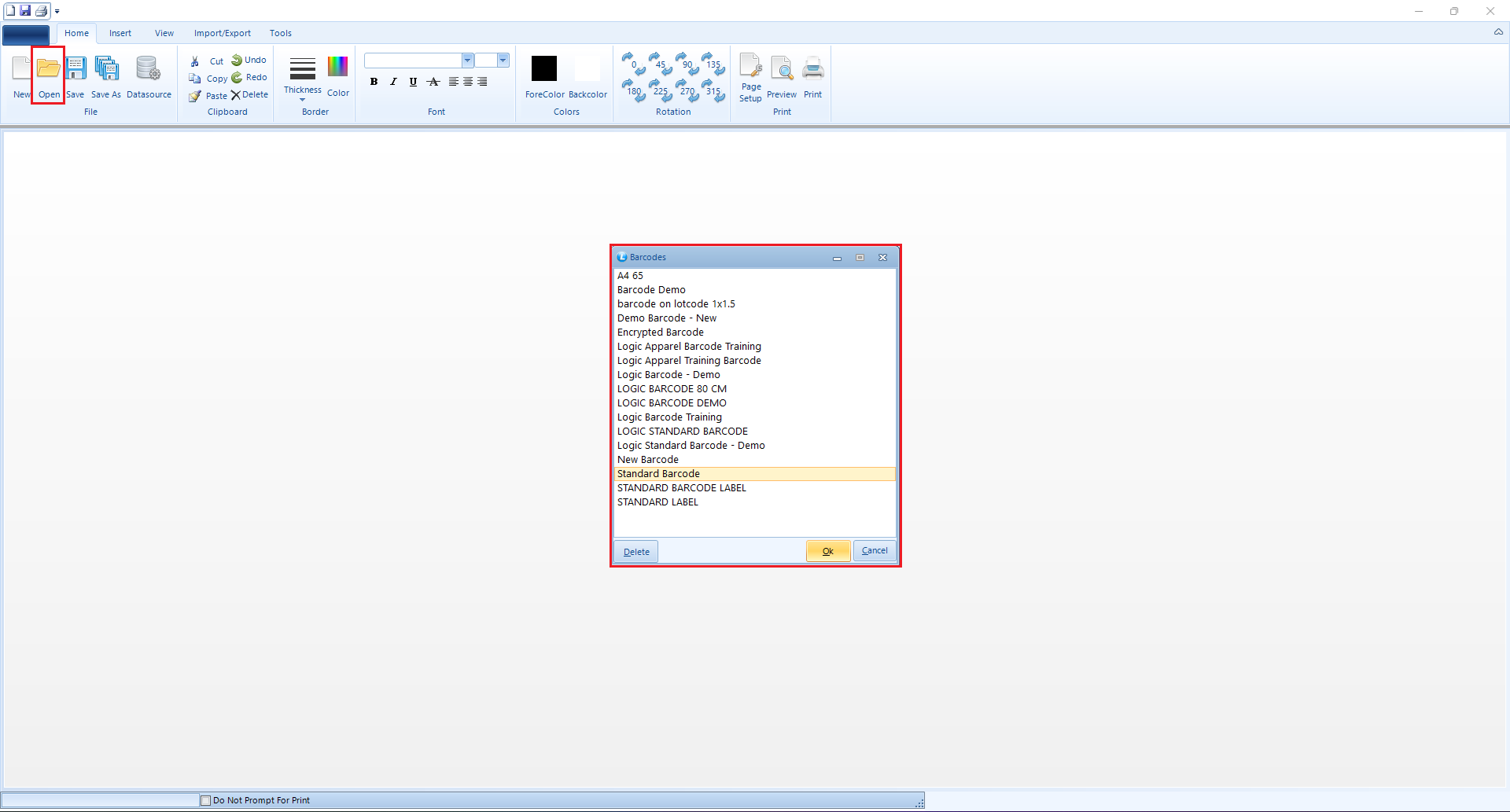
* Click **No** to open the **Barcode Design** window.
* Select **No** to continue.
* Click **Open** and select the required barcode design format.
#### Default Behavior
As shown, the item code is currently configured using the **Item Code** database field.
***
### Configure the Item Code and CF Separator
* Return to the **Barcode Label Printing Configuration** window.
* Locate the **"Item Code and CF Sep"** option.
* Define the required separator.
* For this example, set the separator as a **hyphen (-)**.
* Save the configuration changes.
* Print the barcode label for the same Purchase Voucher again.
#### Result
The separator is not displayed because the barcode design is still using the **Item Code** database field.
To apply the configured separator, the database field must be changed to one of the following:
* **Item Code CF1**
* **Item Code CF2**
* **Item Code CF3**
Let's apply these fields one by one and observe their impact.
***
### Apply the Item Code CF1 Field
* Open the **Barcode Design** window.
* Locate the database field currently set to **Item Code**.
* Replace it with **Item Code CF1**.
* Save the barcode design.
* Print the barcode label again.
**Result**
The **Item Code CF1** field is applied successfully, and the configured **hyphen (-)** is displayed as the separator between the item code and CF1.
***
### Apply the Item Code CF2 Field
* Return to the **Barcode Design** window.
* Change the database field to **Item Code CF2**.
* Save the barcode design.
* Print the barcode label again.
**Result**
The **Item Code CF2** field is applied successfully, and the configured hyphen is displayed between the item code and CF2.
***
### Apply the Item Code CF3 Field
* Return to the **Barcode Design** window.
* Change the database field to **Item Code CF3**.
* Save the barcode design.
* Print the barcode label again.
**Result**
The **Item Code CF3** field is applied successfully, and the configured hyphen is displayed between the item code and CF3.
***
### Review Conversion Factors in Item Master
* Open the relevant **Item Master**.
* Review the conversion factors defined for the item.
#### Current Setup
As shown, the following conversion factors have been defined for the item:
* **Conversion Factor 1 (CF1)**
* **Conversion Factor 2 (CF2)**
* **Conversion Factor 3 (CF3)**
#### System Behavior
The selected database field determines which conversion factor is displayed on the barcode label:
* **Item Code CF1:** Displays the item code with Conversion Factor 1.
* **Item Code CF2:** Displays the item code with Conversion Factor 2.
* **Item Code CF3:** Displays the item code with Conversion Factor 3.
***
### Key Benefits
* **Flexible Formatting:** Allows you to define a separator between the item code and conversion factor.
* **Multiple Conversion Factors:** Supports CF1, CF2, and CF3 in barcode labels.
* **Clear Identification:** Makes the item code and conversion factor easier to distinguish.
* **Custom Barcode Design:** Provides greater control over barcode label formatting.
* **Accurate Data Display:** Ensures the selected conversion factor is reflected on the barcode label.
#### Final Outcome
After configuring **"Item Code and CF Sep"** and applying the appropriate database field, Logic ERP displays the item code and corresponding conversion factor on barcode labels, separated by the defined character. This provides a clear and flexible way to represent item codes along with their conversion factors.
---
# Agent Instructions
This documentation is published with GitBook. GitBook is the documentation platform designed so that both humans and AI agents can read, navigate, and reason over technical content effectively. Learn more at gitbook.com.
## Querying This Documentation
If you need additional information that is not directly available in this page, you can query the documentation by asking a question.
Perform an HTTP GET request on the following URL with the `ask` and `goal` query parameters:
```
GET https://kb.logicerp.com/logic-erp-learning-hub-tutorials-and-best-practices/reports-queries/item-report/barcode-labels-printing/barcode-labels-printing-configuration/item-code-and-cf-separator.md?ask=&goal=
```
`ask` is the immediate question: it should be specific, self-contained, and written in natural language.
`goal` is what the user is ultimately trying to achieve, the reason they need the answer. Sharing it helps GitBook give you a better, more relevant answer. A goal is most helpful when it describes the outcome the user wants rather than restating the question. For example, with `ask=how do I create an API token`, a goal like `automate deployments from our CI pipeline` lets GitBook tailor the answer to that use case.
The response will contain a direct answer to the question and relevant excerpts and sources from the documentation.
Use this mechanism when the answer is not explicitly present in the current page, you need clarification or additional context, or you want to retrieve related documentation sections.