> For the complete documentation index, see [llms.txt](https://kb.logicerp.com/llms.txt). Markdown versions of documentation pages are available by appending `.md` to page URLs; this page is available as [Markdown](https://kb.logicerp.com/logic-erp-learning-hub-tutorials-and-best-practices/purchase/enter-g.r.-details-purchase.md).
# Enter G.R. Details - Purchase
**YouTube:** [How to Enter G.R. Details for Multiple Purchase Documents Using Grid Mode?](https://www.youtube.com/watch?v=xns1SpjIn9A)
## How to Enter G.R. Details for Multiple Purchase Documents Using Grid Mode?
In this tutorial, we will learn how to **enter G.R. (Goods Receipt) Details for Purchase transactions** in **Logic ERP**. This feature allows you to update GR information for multiple purchase bills efficiently, ensuring accurate documentation and tracking.
***
### Open G.R. Entry Module
* Navigate to **Enter G.R. Details – Purchase**
* The GR entry screen opens
***
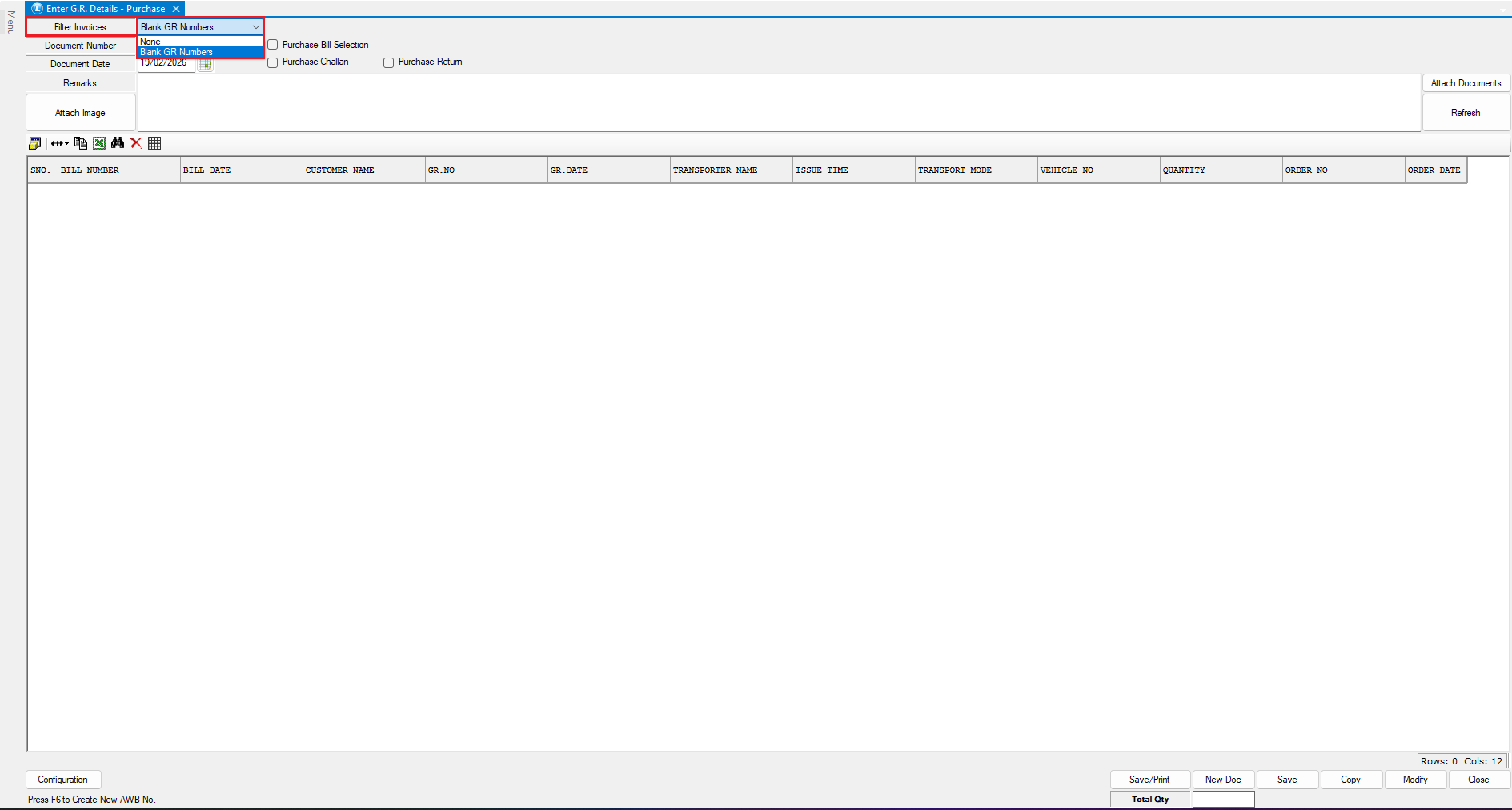
### Filter Purchase Bills without G.R. Details
* From the **Filter Invoices** dropdown:
* Select **Blank GR Number**
* Select the **Document Type** for which GR details are to be entered
* For this tutorial, choose **Purchase Bill**
* The system displays only those purchase bills where **GR details have not yet been entered**
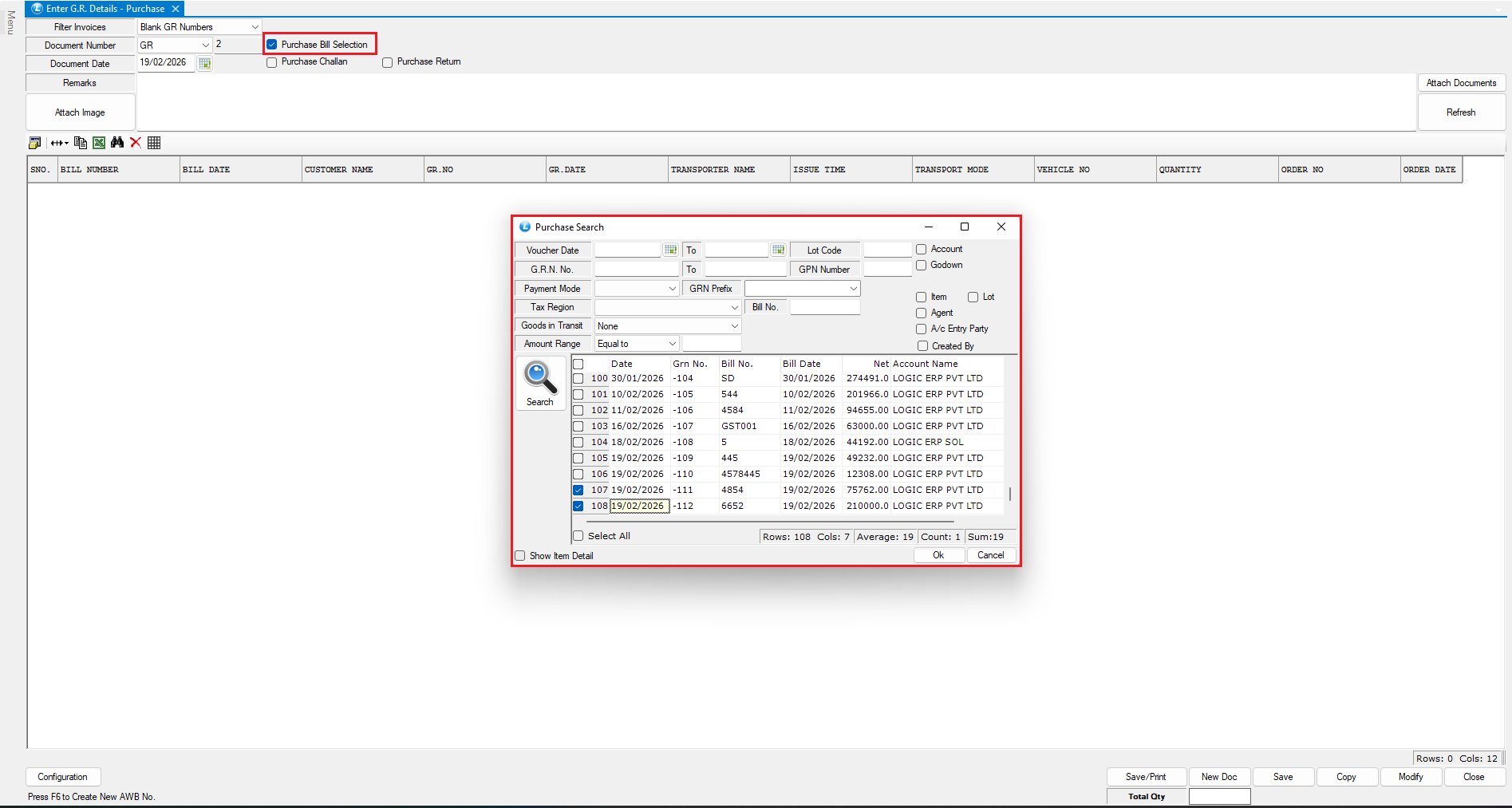
**Verify Purchase Bills**
* Identify the bills requiring GR entry
* In this example: **Purchase Bill Nos. 4854** and **6652**
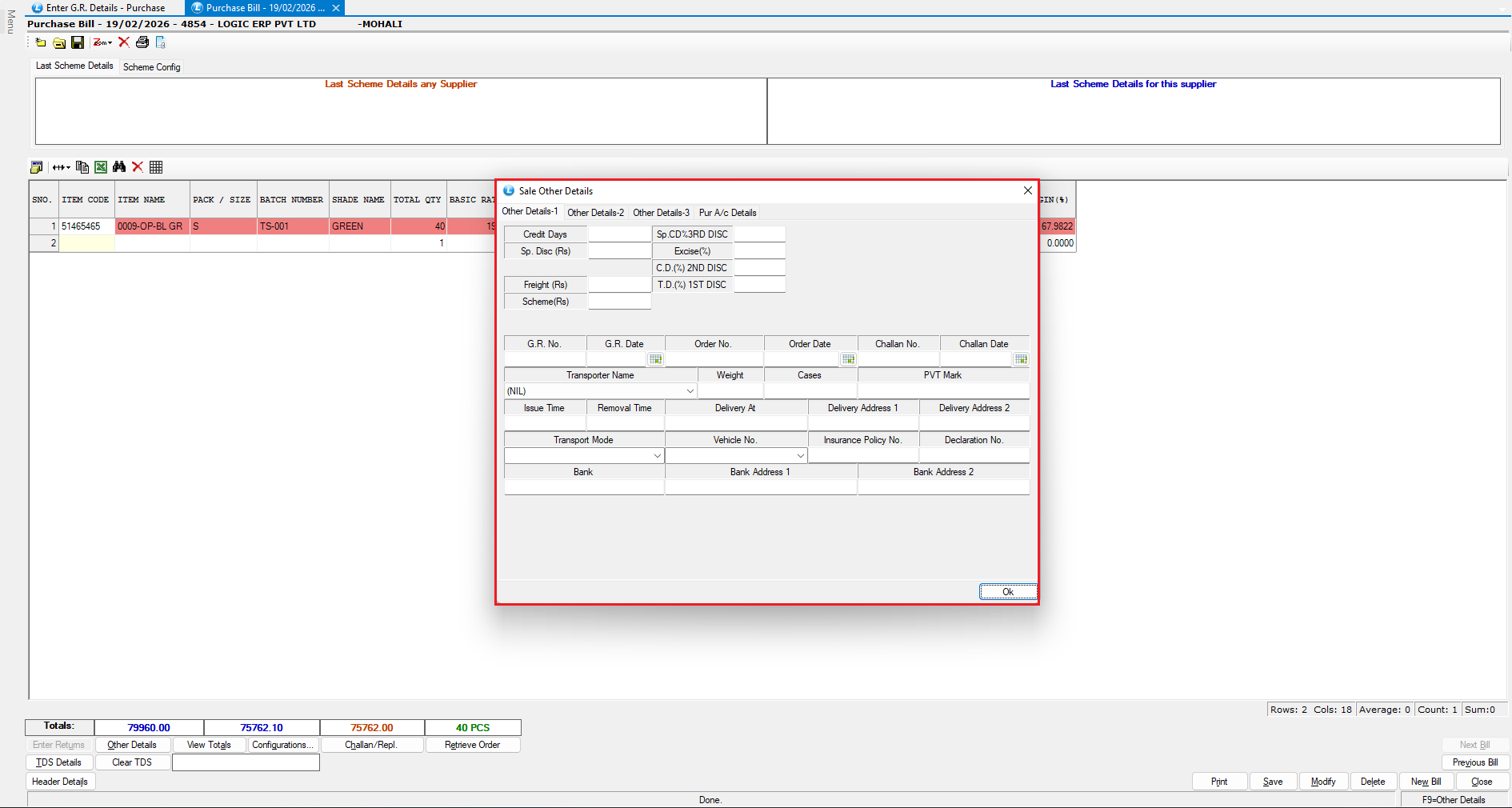
* Open the **Purchase Voucher** module
* Review both bills individually
* Confirm that **GR details are not entered** in these bills
***
### Enter G.R. Details
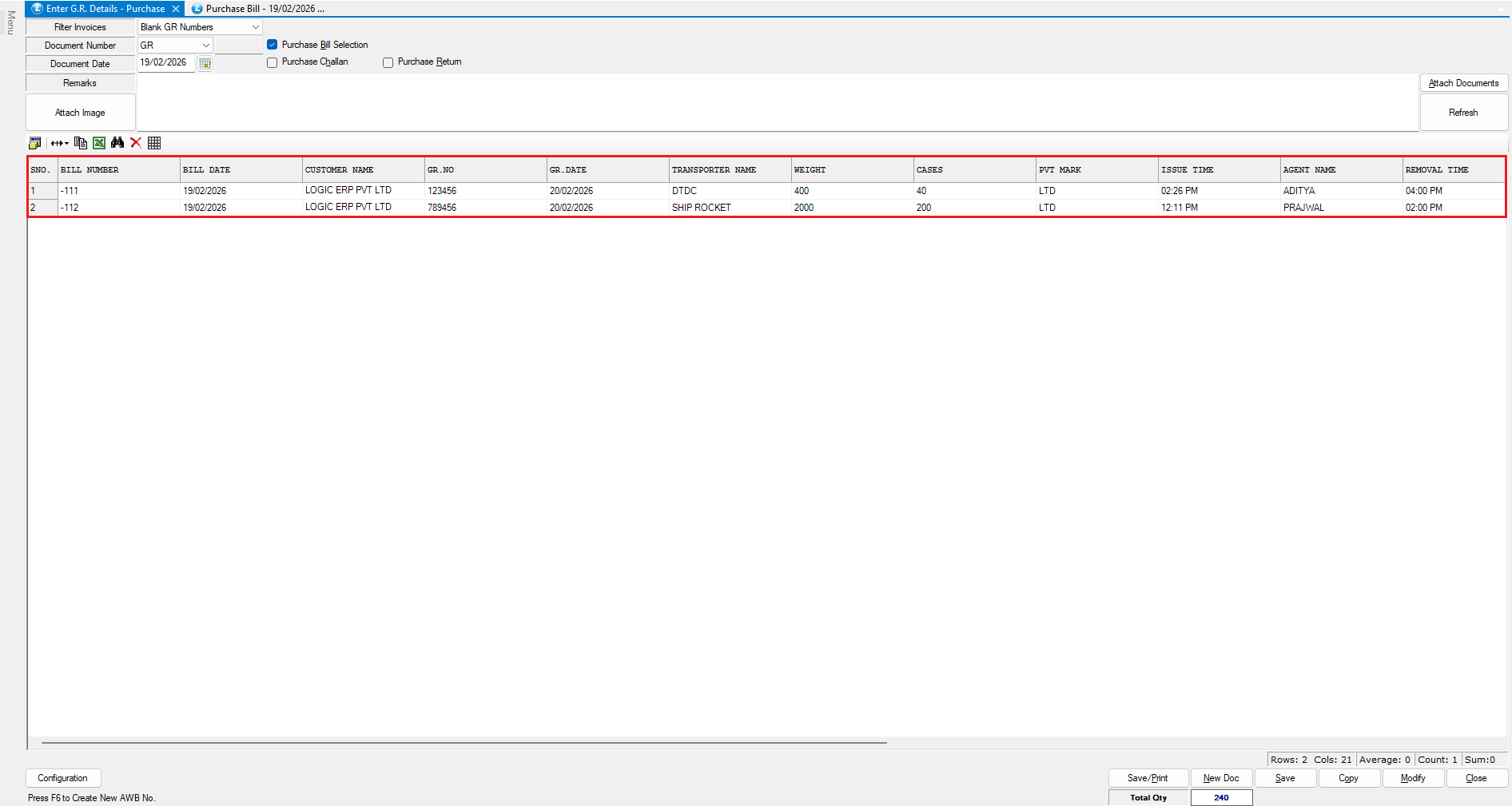
* Return to the **G.R. Entry** window
* Select **Purchase Bill Nos. 4854** and **6652**
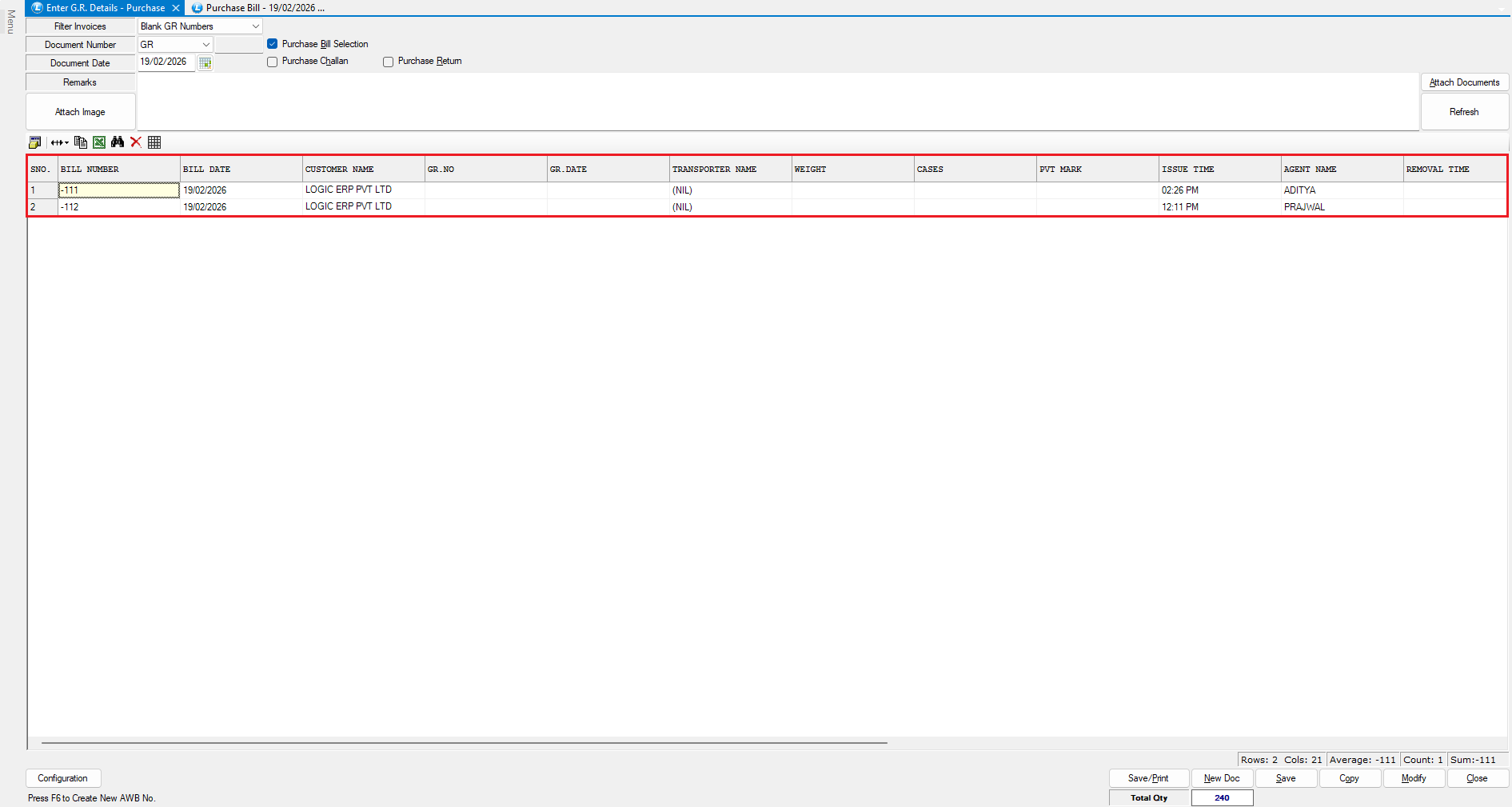
* The selected bills appear in the grid
From this grid, you can:
* Enter **GR Number**
* Enter **GR Date**
* Update other required GR-related details
* All bills can be updated from a **single screen**, making the process fast and convenient.
***
### Add Remarks and Attachments
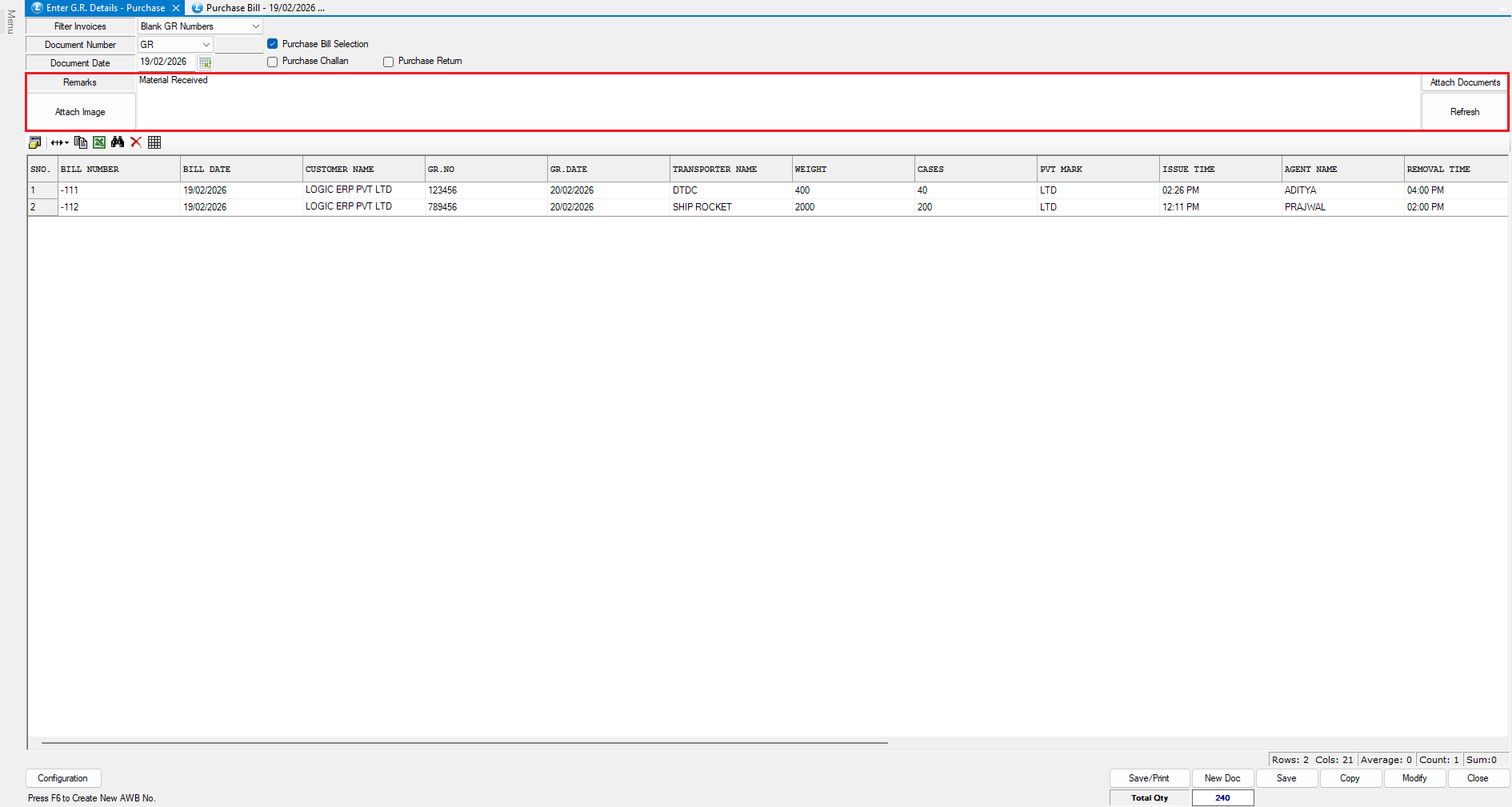
* Enter additional notes in the **Remarks** field, if required
* Attach:
* Supporting documents
* Relevant files for future reference
* Images for visual verification of GR details
***
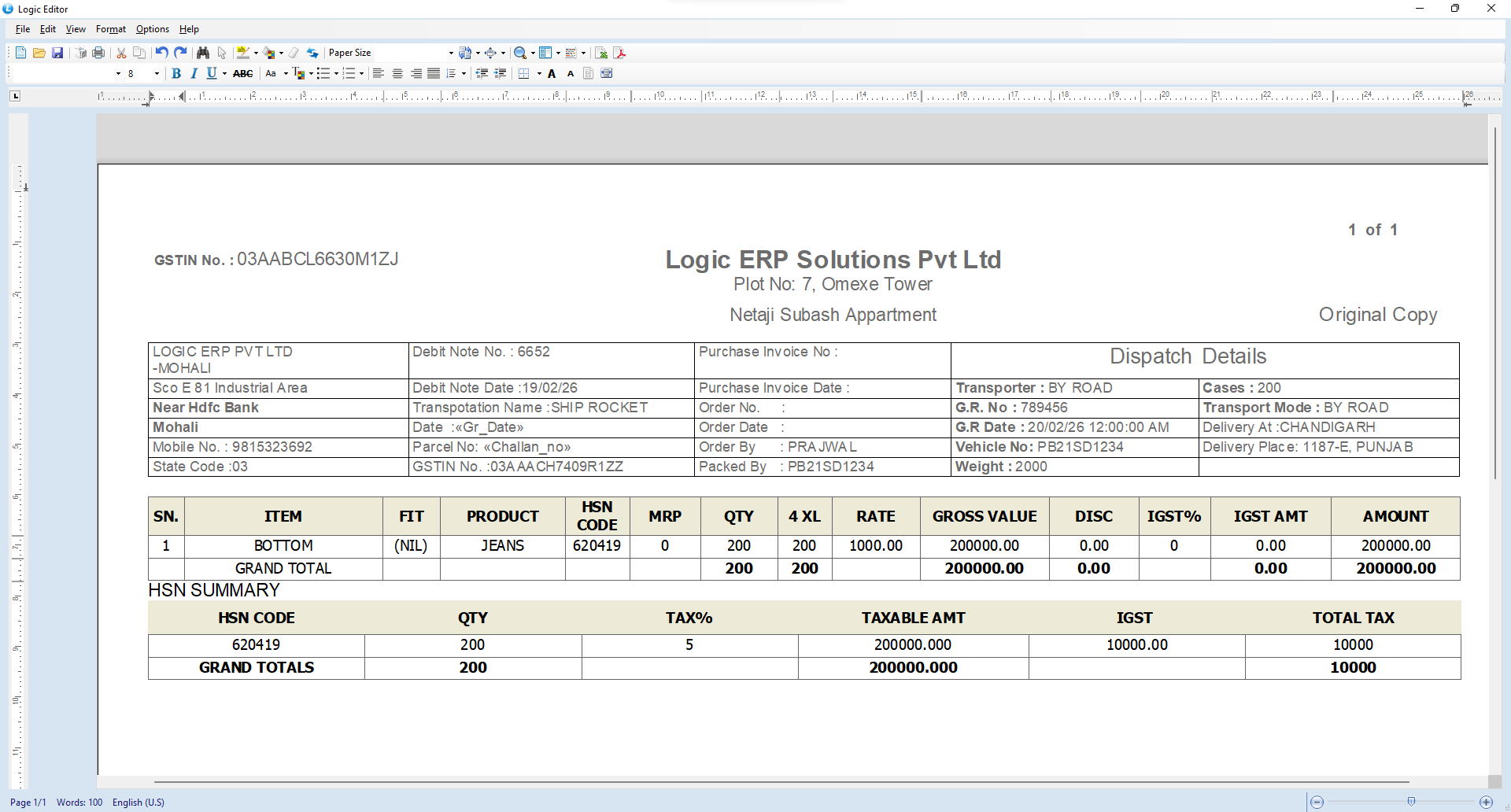
### Save and Print
* Click **Save** to update the GR details
* To print immediately, click **Save & Print**
* Verify that:
* Updated GR details are reflected in the **first bill print**
* The **second bill print** opens automatically with updated information
***
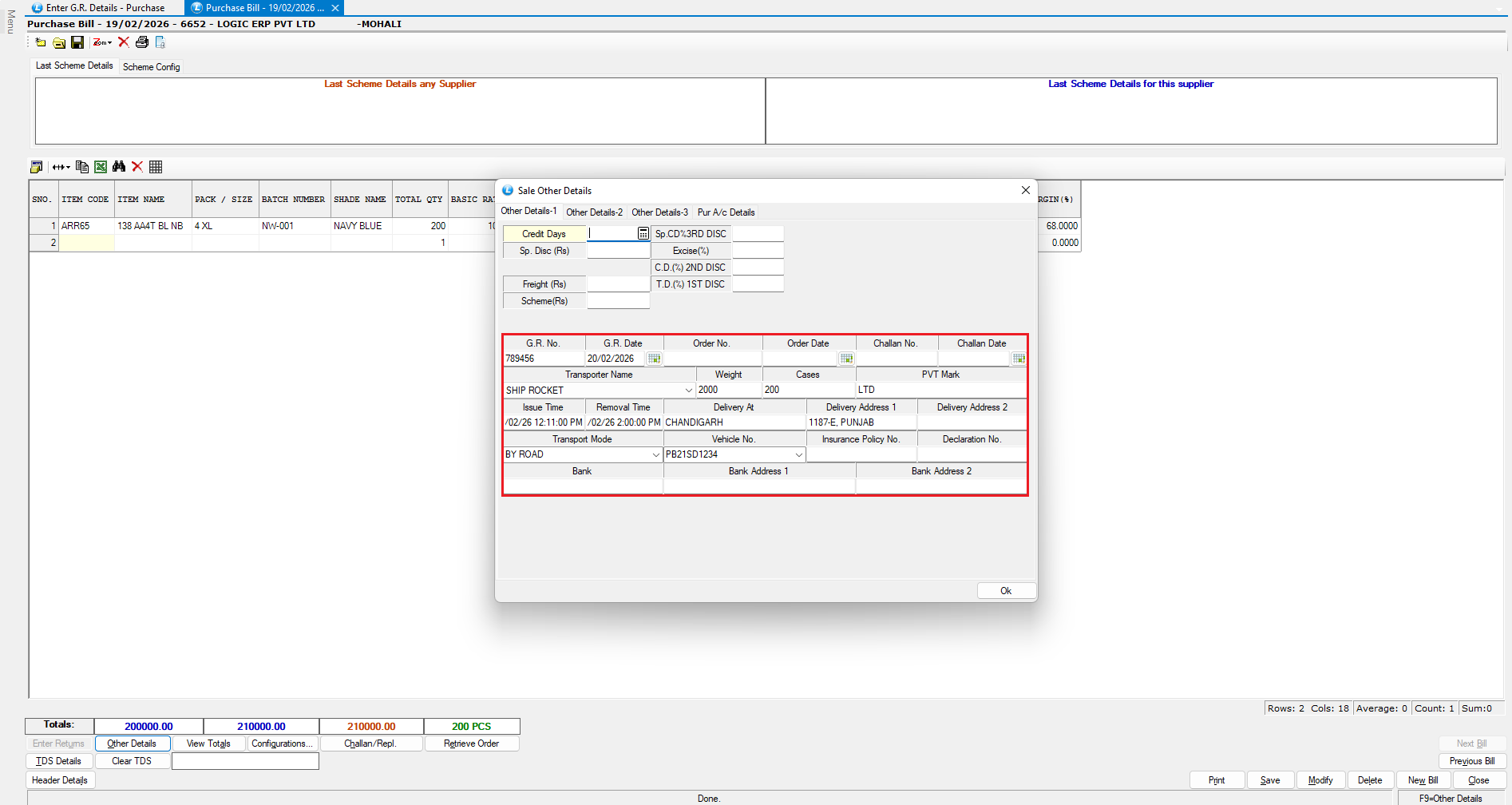
### Verify G.R. Details in Purchase Voucher
* Open the same purchase bills in the **Purchase Voucher** module
* Confirm that the **GR details are correctly reflected**
***
### Conclusion
Entering G.R. details through this module ensures:
* Accurate recording of goods receipt information
* Faster bulk updates across multiple purchase bills
* Proper documentation with attachments and print support
---
# Agent Instructions
This documentation is published with GitBook. GitBook is the documentation platform designed so that both humans and AI agents can read, navigate, and reason over technical content effectively. Learn more at gitbook.com.
## Querying This Documentation
If you need additional information that is not directly available in this page, you can query the documentation dynamically by asking a question.
Perform an HTTP GET request on the current page URL with the `ask` query parameter, and the optional `goal` query parameter:
```
GET https://kb.logicerp.com/logic-erp-learning-hub-tutorials-and-best-practices/purchase/enter-g.r.-details-purchase.md?ask=&goal=
```
`ask` is the immediate question: it should be specific, self-contained, and written in natural language.
`goal` is optional and describes the broader end goal you are ultimately trying to accomplish on behalf of the user. GitBook uses it to tailor the answer towards what is most useful for that goal.
The response will contain a direct answer to the question and relevant excerpts and sources from the documentation.
Use this mechanism when the answer is not explicitly present in the current page, you need clarification or additional context, or you want to retrieve related documentation sections.