> For the complete documentation index, see [llms.txt](https://kb.logicerp.com/llms.txt). Markdown versions of documentation pages are available by appending `.md` to page URLs; this page is available as [Markdown](https://kb.logicerp.com/logic-erp-learning-hub-tutorials-and-best-practices/order-processing/sale-order/so-configuration/sale-order-quantity-limit.md).
# Sale Order Quantity Limit
**YouTube:** [How to Configure Quantity Limit Validation in Sales Orders?](https://youtu.be/hmeot9pnfyE)
## How to Configure Quantity Limit Validation in Sales Orders?
In this tutorial, we will learn how to configure **"SO Quantity Limit"** in Logic ERP to control the maximum quantity that can be entered for an item in a Sale Order. We will explore each available quantity validation method and understand how the system restricts entries based on the configured limit.
***
### Objective of This Feature
* Control the maximum quantity allowed in Sale Orders
* Prevent orders beyond available or permissible stock
* Consider pending Purchase Orders and Sale Orders
* Factor in maximum order levels and goods in transit
* Create customized quantity validation using expressions
* Improve inventory and order management
***
### Access to the Sale Order Configuration
* Open the **Sale Order Configuration** window.
* Navigate to the **Other Options** section.
* Locate the option labeled as:
> **"SO Quantity Limit"**
This option provides multiple quantity validation methods.
* Closing Stock
* C.Stock+Pend PO
* Max Order Level -(C.Stock + Pend SO + GIT)
* C.Stock-Pend SO
* Use Expression
***
### Option 1: Closing Stock
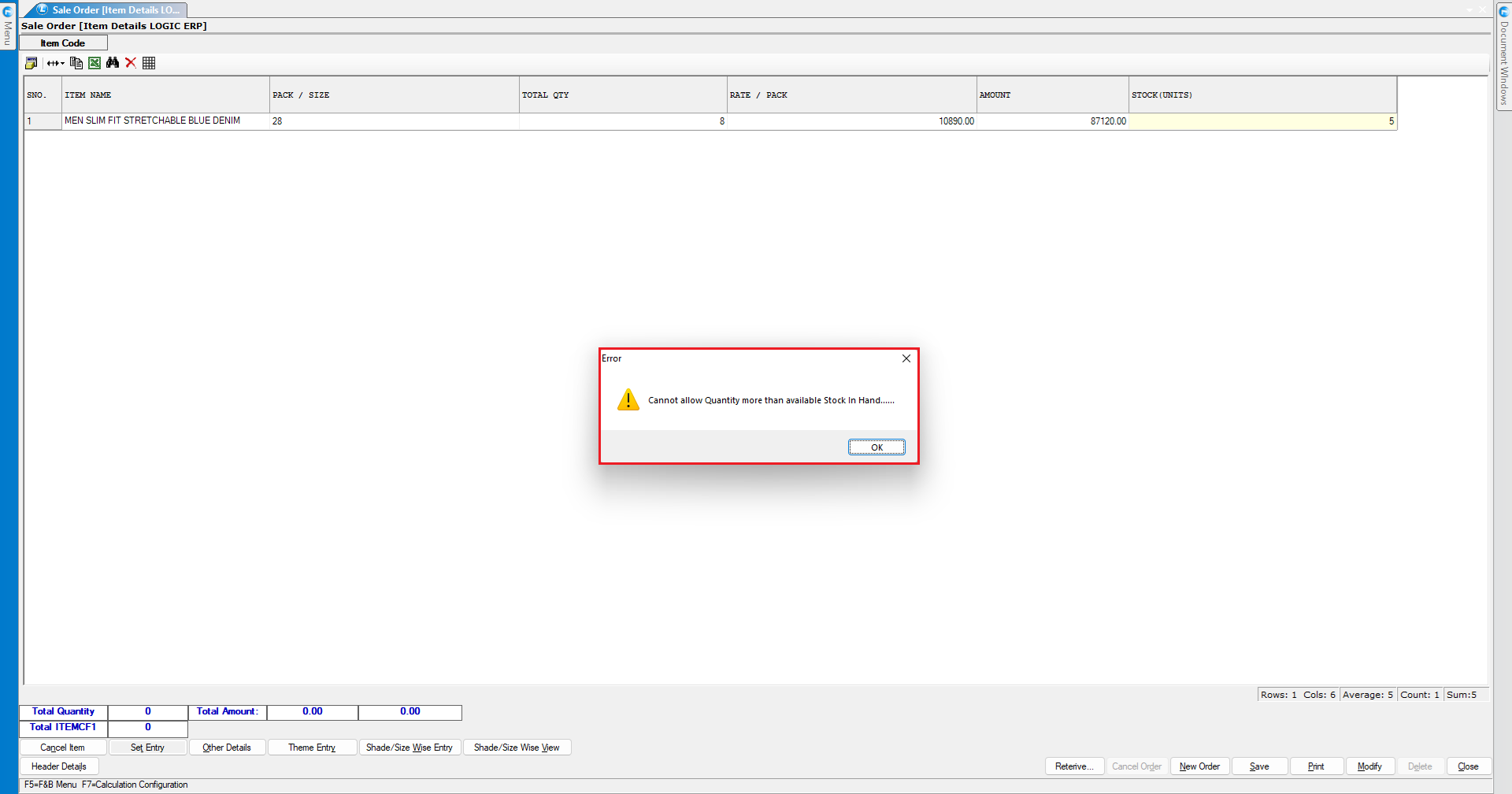
* Select **Closing Stock** as the Sale Order Quantity Limit.
* Save the configuration.
* Initiate a **New Sale Order**.
* Transact the required item.
**Example**
* Suppose the available closing stock is **5 units**.
* The system will allow a maximum of **5 units** to be entered in the Sale Order.
**Result**
* If you enter a quantity greater than 5, the software restricts the transaction and displays an error message indicating that the entered quantity exceeds the available stock.
* If you enter **5 units or less**, the system allows you to continue.
***
### Option 2: Closing Stock + Pending Purchase Order Quantity
* Return to **Sale Order Configuration**.
* Set **SO Quantity Limit** to **Closing Stock + Pending Purchase Order Quantity**.
* Save the configuration.
**Example**
Before creating the Sale Order:
* Closing Stock: **5 units**
* Pending Purchase Order: **10 units**
* Total Permissible Quantity: **15 units**
You can verify the pending Purchase Order quantity through the **Pending Purchase Order Report**.
#### Let’s review the implementation and evaluate the results.
* Return to the Sales Order screen.
* Enter **18** in the **Quantity** field to check the reflection.
* If you try to enter more than **15 Units**, the software restricts the transaction and displays an error message.
> "Cannot allow Quantity more than available (Stock In Hand + Pending Purchase Order Quantity)....."
* If you enter **15 units or less**, the system allows you to continue.
***
### Option 3: Max Order Level -(C.Stock + Pend SO + GIT)
* Return to **Sale Order Configuration**.
* Set **SO Quantity Limit** to **(Max Order Level -(C.Stock + Pend SO + GIT).**
* Save the configuration.
* Initiate a new Sale Order.
* Select the required item.
**Verify Maximum Order Level**
* Open the **Item Setup** window.
* Navigate to **Pack Details**.
* Open the **Order Levels** tab.
* Review the **Max Order Level** defined for the item.
**The system considers:**
* Maximum Order Level: **50**
* Closing Stock: **5**
* Pending Sale Order Quantity: **10**
* Goods in Transit Quantity: **0**
**Note:**
* **Goods in Transit** refers to stock transferred to another branch that has not yet been received and verified by the destination branch.
**Result**
* The software calculates the permissible quantity based on these values. If the entered quantity exceeds the calculated limit, the system restricts the transaction and displays an appropriate error message.
***
### Option 4: Closing Stock − Pending Sale Order Quantity
* Return to the configuration window.
* Set **SO Quantity Limit** to (Closing Stock − Pending Sale Order Quantity).
* Save the configuration.
* Initiate a new Sale Order.
* Transact the required item.
**Result**
The system displays both:
* **Stock in Hand: 5**
* **Pending Sale Order Quantity: 10**
* The permissible quantity is calculated using the configured formula.
* If you enter more than **5 units**, the software will display an **error prompt**.
**Result**
* A quantity of **5 units or less** can be entered successfully.
***
### Option 5: Use Expression
* Select **Use Expression** from the **SO Quantity Limit** dropdown.
* Click **Define Expression**.
* Create a customized quantity validation formula using the available parameters.
* Save the expression.
* Save the configuration.
**Result**
* During Sale Order entry, the software evaluates the entered quantity according to the defined expression.
**Example**
If the expression calculates the maximum permissible quantity as **100 units**:
* Quantity **≤ 5** → Entry allowed
* Quantity **> 5** → Entry restricted
The software displays an error message when the entered quantity exceeds the calculated limit.
***
### Key Benefits
* **Inventory Control:** Prevents Sale Orders from exceeding permissible quantities.
* **Automated Validation:** Automatically calculates the allowable quantity.
* **Better Stock Planning:** Considers current stock, pending orders, and incoming inventory.
* **Flexible Configuration:** Provides multiple predefined validation methods.
* **Custom Validation:** Allows users to create their own quantity limit through expressions.
* **Error Prevention:** Helps avoid excessive or unrealistic Sale Order quantities.
***
### Important Note
The permissible Sale Order quantity depends on the **SO Quantity Limit** option selected in the configuration. When **Use Expression** is selected, the limit is determined according to the customized expression defined by the user.
***
### Final Outcome
After configuring **SO Quantity Limit**, Logic ERP automatically validates the quantity entered during Sale Order creation. Whether the limit is based on **Closing Stock, Pending Purchase Orders, Maximum Order Level, Pending Sale Orders, Goods in Transit, or a Custom Expression**, the software restricts quantities that exceed the configured permissible limit.
---
# Agent Instructions
This documentation is published with GitBook. GitBook is the documentation platform designed so that both humans and AI agents can read, navigate, and reason over technical content effectively. Learn more at gitbook.com.
## Querying This Documentation
If you need additional information that is not directly available in this page, you can query the documentation dynamically by asking a question.
Perform an HTTP GET request on the current page URL with the `ask` query parameter, and the optional `goal` query parameter:
```
GET https://kb.logicerp.com/logic-erp-learning-hub-tutorials-and-best-practices/order-processing/sale-order/so-configuration/sale-order-quantity-limit.md?ask=&goal=
```
`ask` is the immediate question: it should be specific, self-contained, and written in natural language.
`goal` is optional and describes the broader end goal you are ultimately trying to accomplish on behalf of the user. GitBook uses it to tailor the answer towards what is most useful for that goal.
The response will contain a direct answer to the question and relevant excerpts and sources from the documentation.
Use this mechanism when the answer is not explicitly present in the current page, you need clarification or additional context, or you want to retrieve related documentation sections.