> For the complete documentation index, see [llms.txt](https://kb.logicerp.com/llms.txt). Markdown versions of documentation pages are available by appending `.md` to page URLs; this page is available as [Markdown](https://kb.logicerp.com/logic-erp-learning-hub-tutorials-and-best-practices/order-processing/sale-order/add-freight-charges-in-sales-orders.md).
# Add Freight Charges in Sales Orders
**YouTube:** [How to Apply Freight Charges in Sales Orders?](https://www.youtube.com/watch?v=xRISupM7mmk)
## How to Apply Freight Charges in Sales Orders?
In this tutorial, we will learn how to **apply and manage freight charges in a Sales Order in Logic ERP**. Let’s get started.
***
### Creating a Sales Order
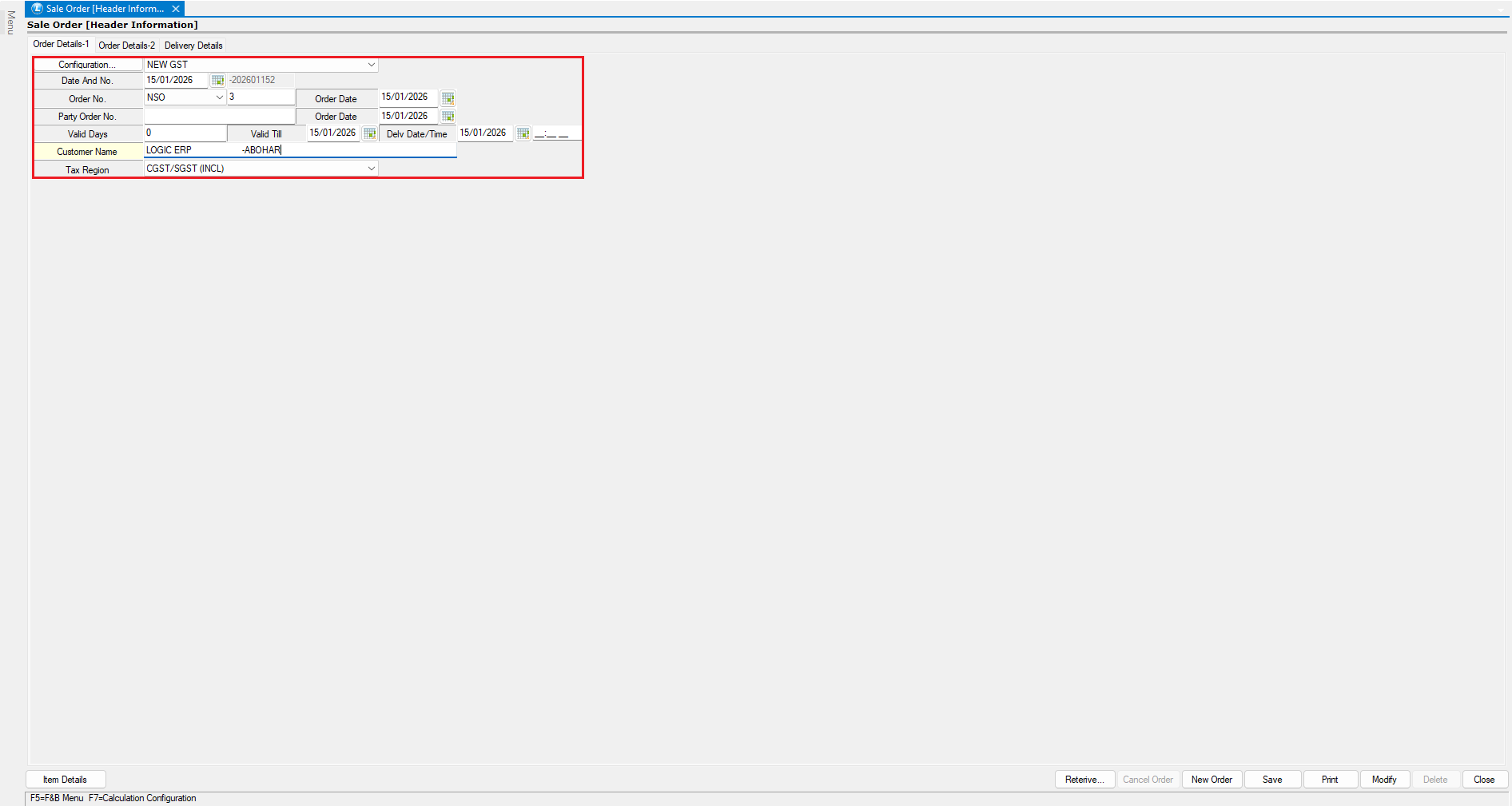
* Open the **Sales Order** module.
* Enter the **Party Name**.
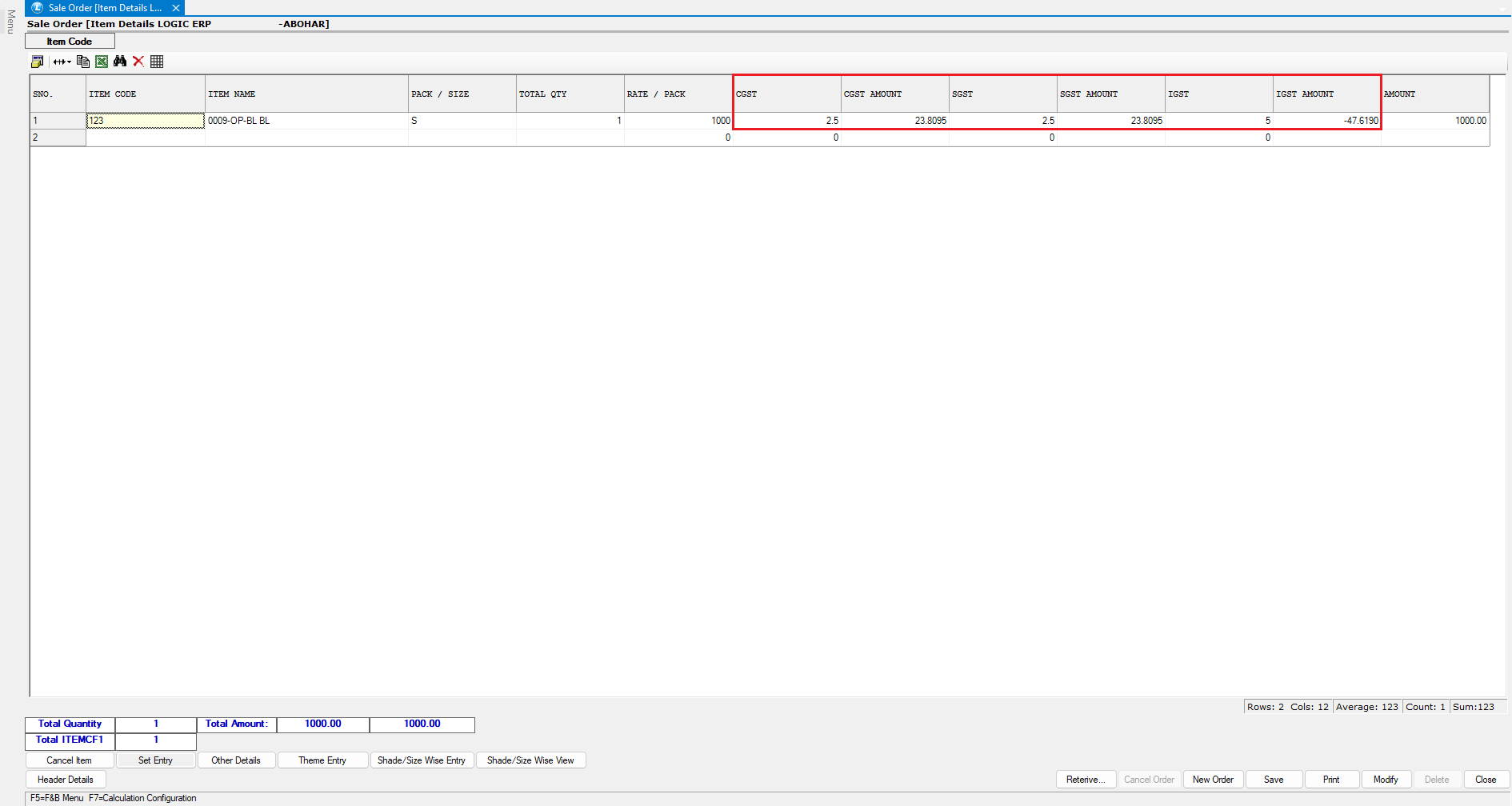
* Move to the **Item Details** window.
***
### Enabling Required Tax Columns
* In the item detail grid, check whether tax-related columns are visible.
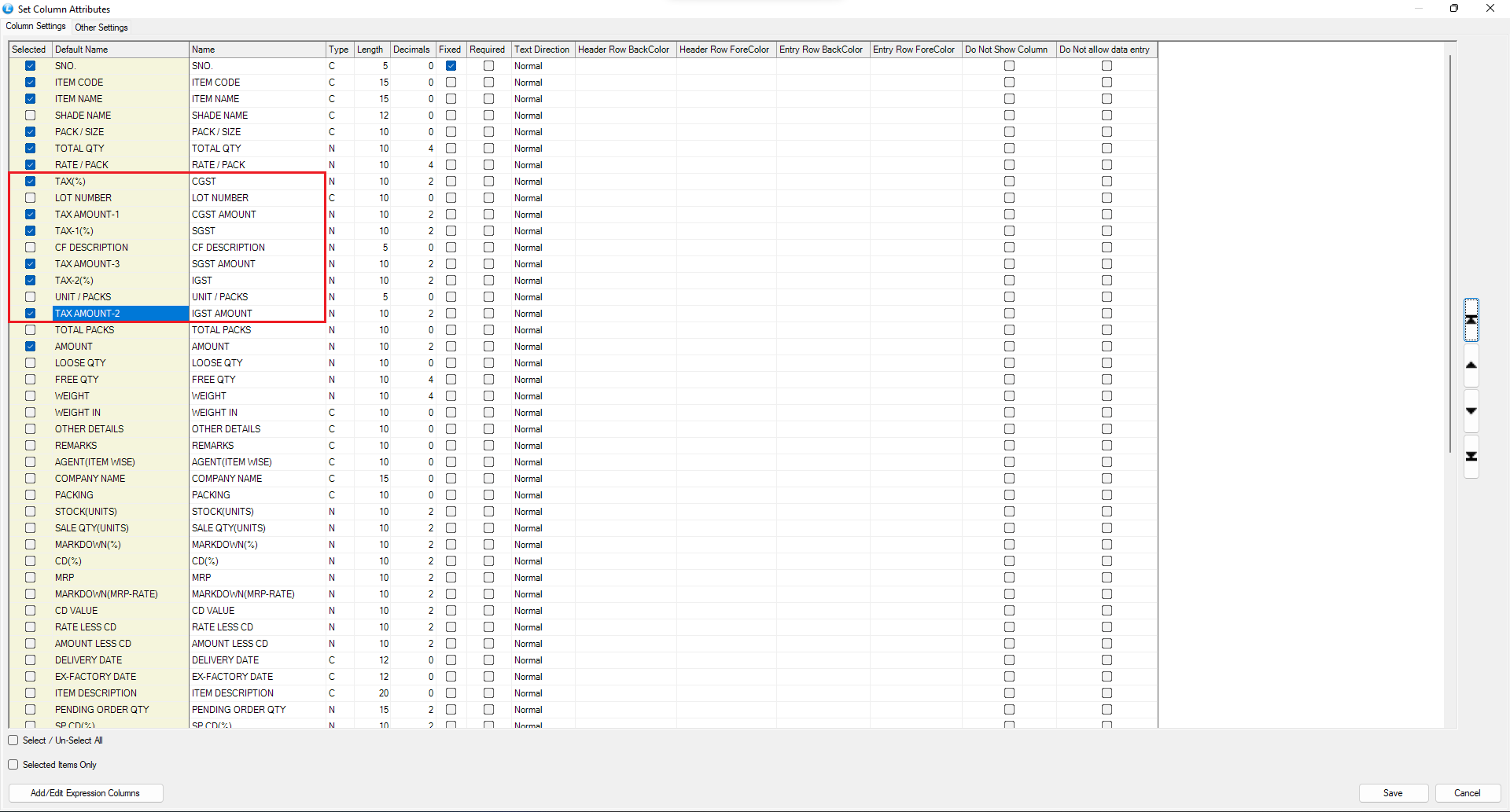
* If not, go to **Setup Column Attributes**.
* Enable the required **tax columns** by ticking the relevant checkboxes.
* Now proceed with **item entry**.
***
### Applying Freight Charges (After Tax)
**Enable Other Value 1 Field**
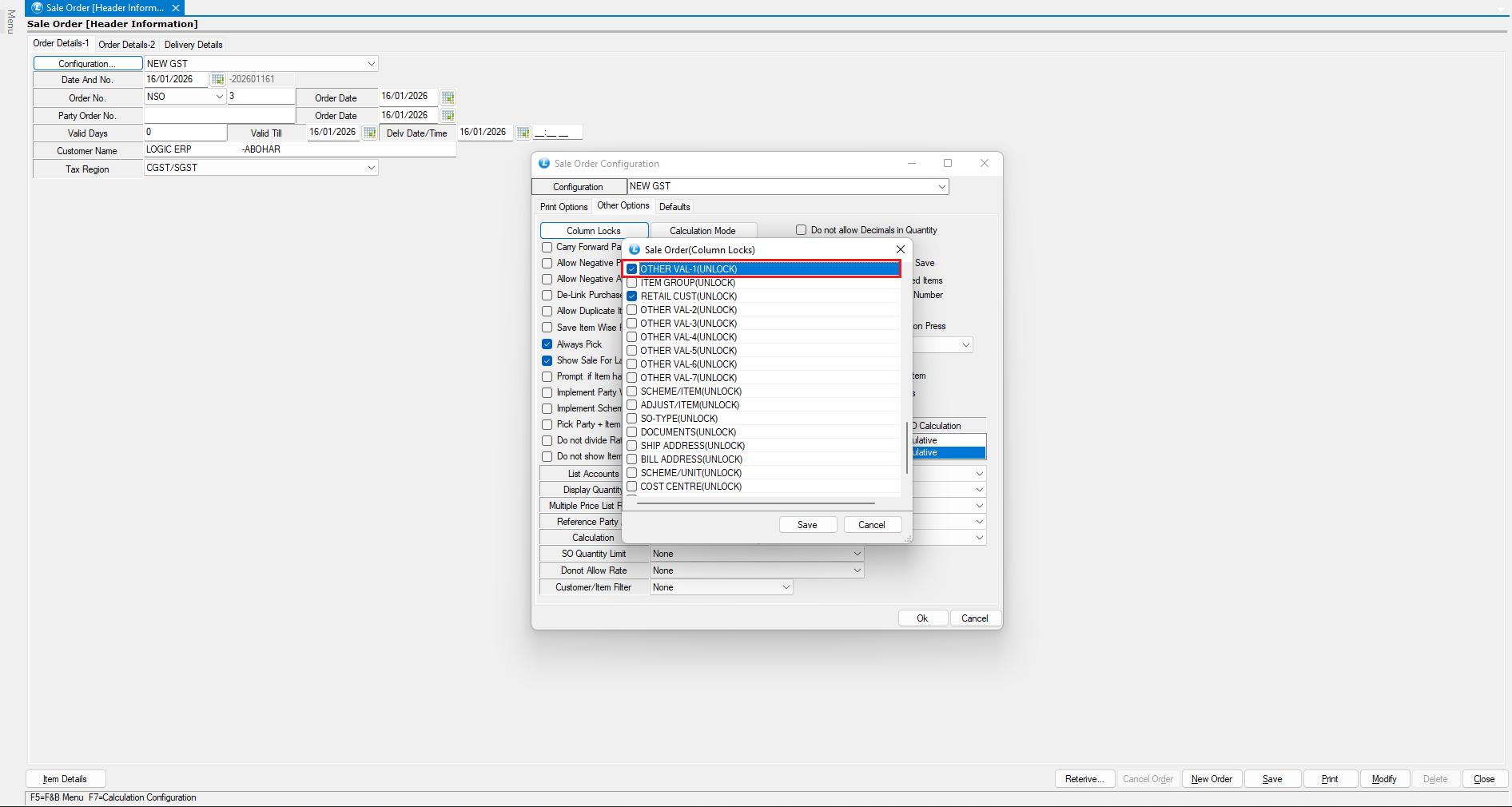
* From the **Header window**, click on **Configuration**.
* Open **Column Locks**.
* Enable the **Other Value 1** field
* Click **OK** to save the changes.
**Generate Sale Order**
* Return to the Sales Order window.
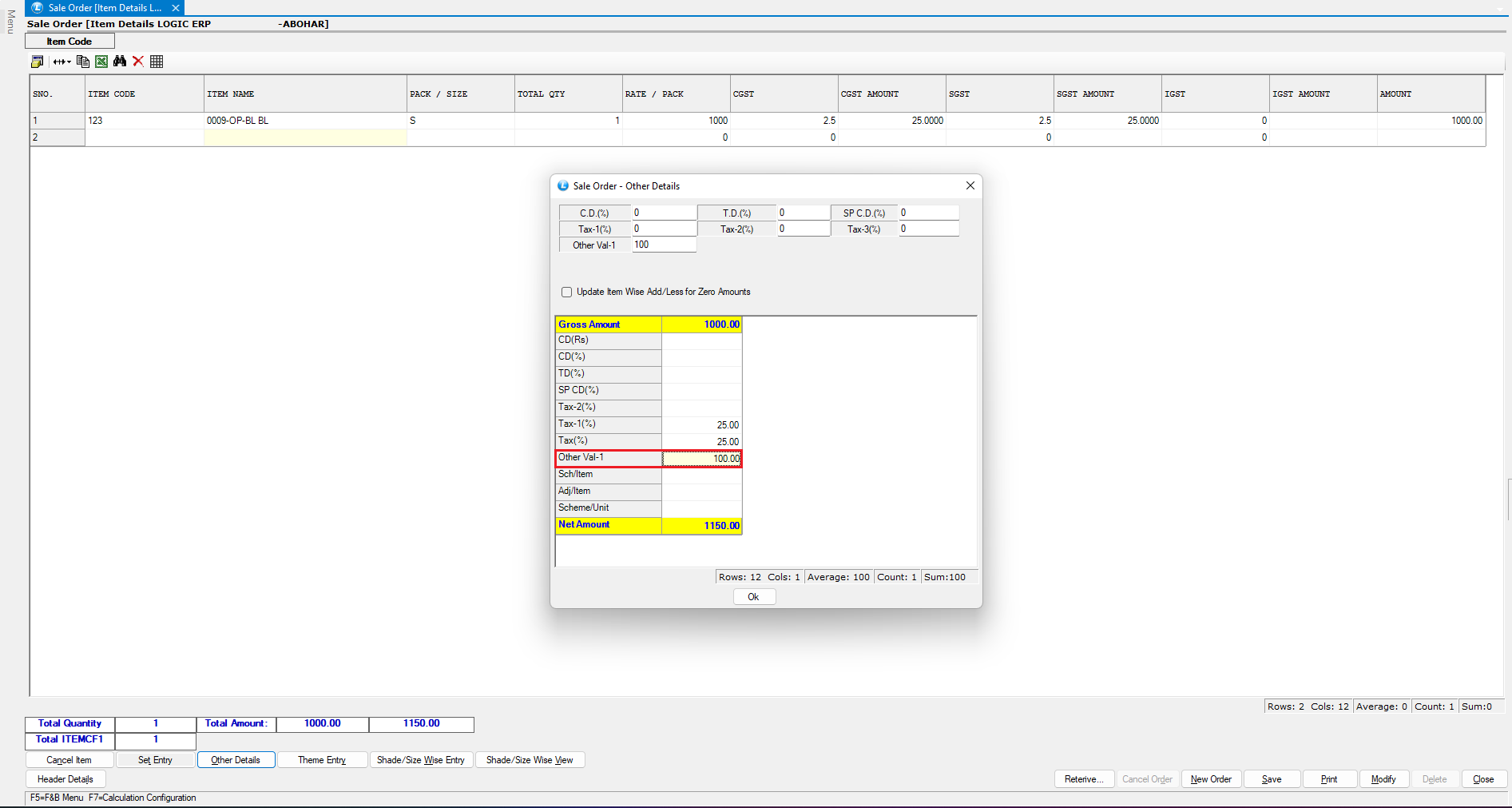
* After selecting the item, click on the **Other Details** section.
* Enter freight charges of ₹100 in the **Other Value 1** field.
* Click **OK** and reopen the **Other Details** section.
* You will notice that the freight amount is **added after tax**, resulting in a **net amount of ₹1,150**.
***
### Applying Freight Charges Before Tax (Voucher Level)
If you want to apply freight charges **before tax**:
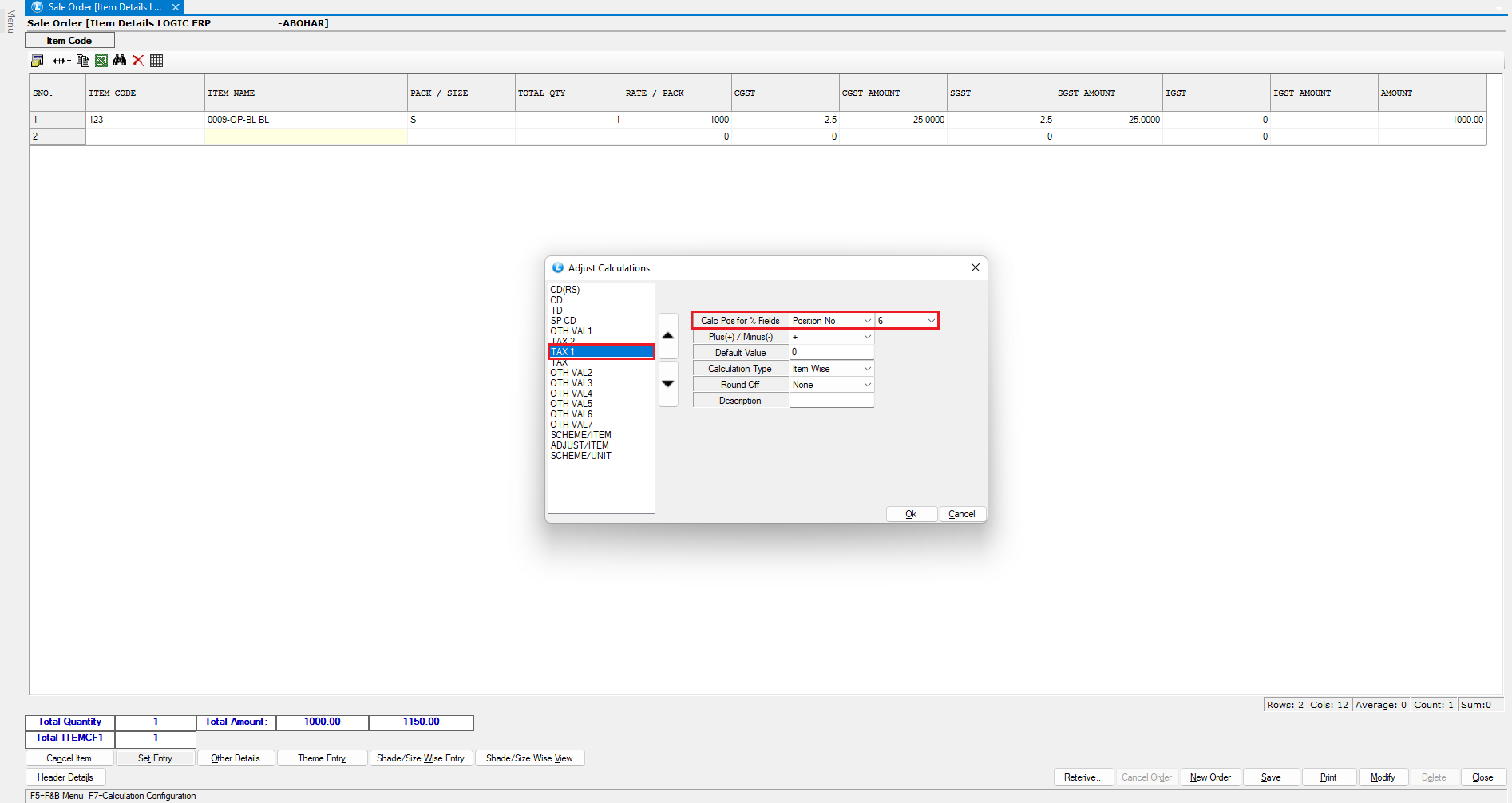
* Press **F7** to open the **Calculation Configuration** screen.
* Select **Other Value 1**.
* Reposition it **above the tax fields**.
* Ensure that the **Calculation Type** for Other Value 1 is set to **Item Wise**.
**Important:**
* Count the total number of calculation fields up to **Tax 2**.
* Set the **position numbers** correctly for **Tax 1** and **Tax 3**.
> Note: Configuration done using **F7** applies **only to the current sales order**.
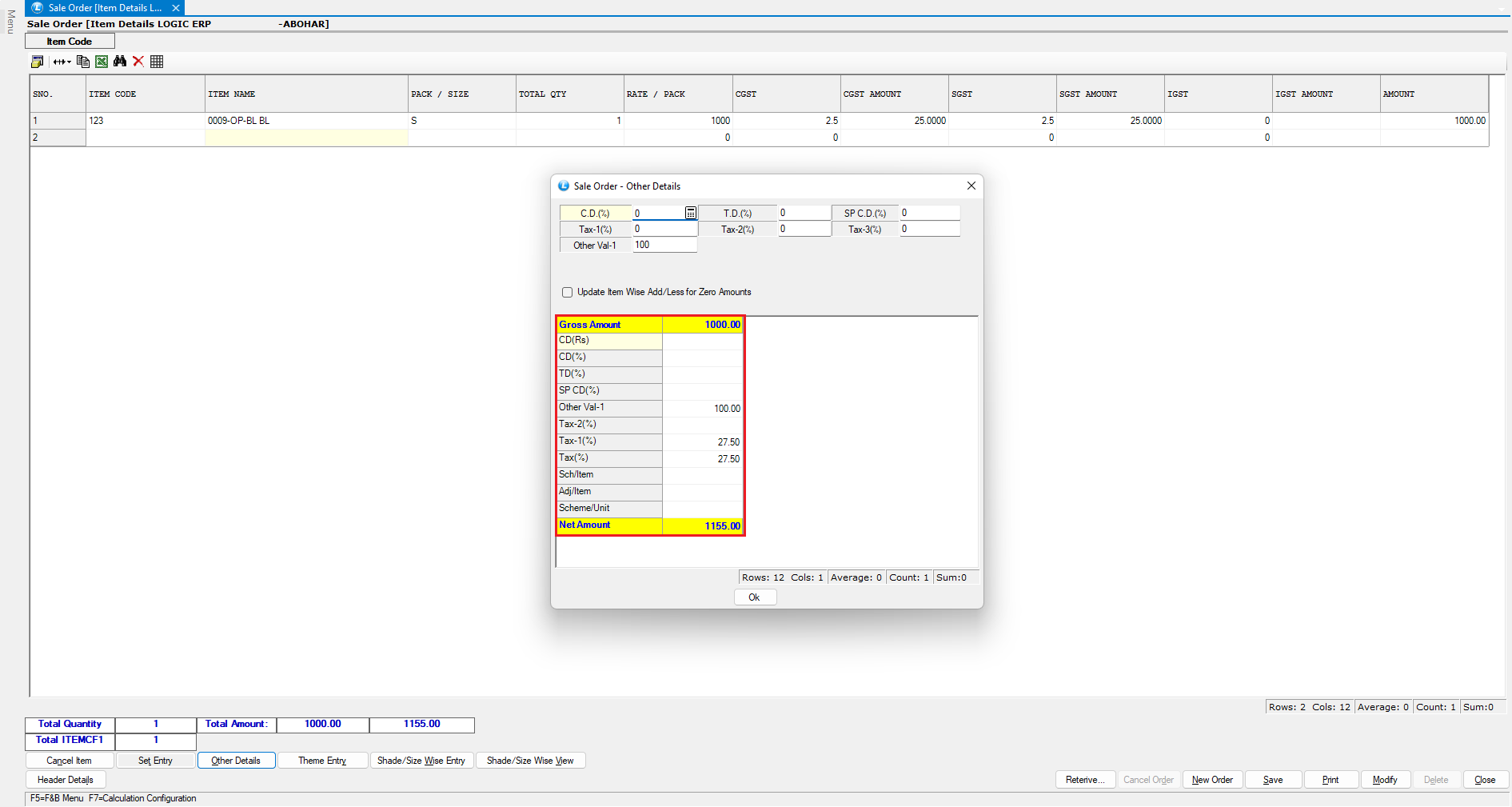
* Now return to the **Other Details** section.
* You will observe that freight charges are now applied **before tax**, resulting in a **net amount of ₹1,155**.
***
### Applying Freight Configuration Globally
If you want to apply the freight calculation logic for **all sales orders**:
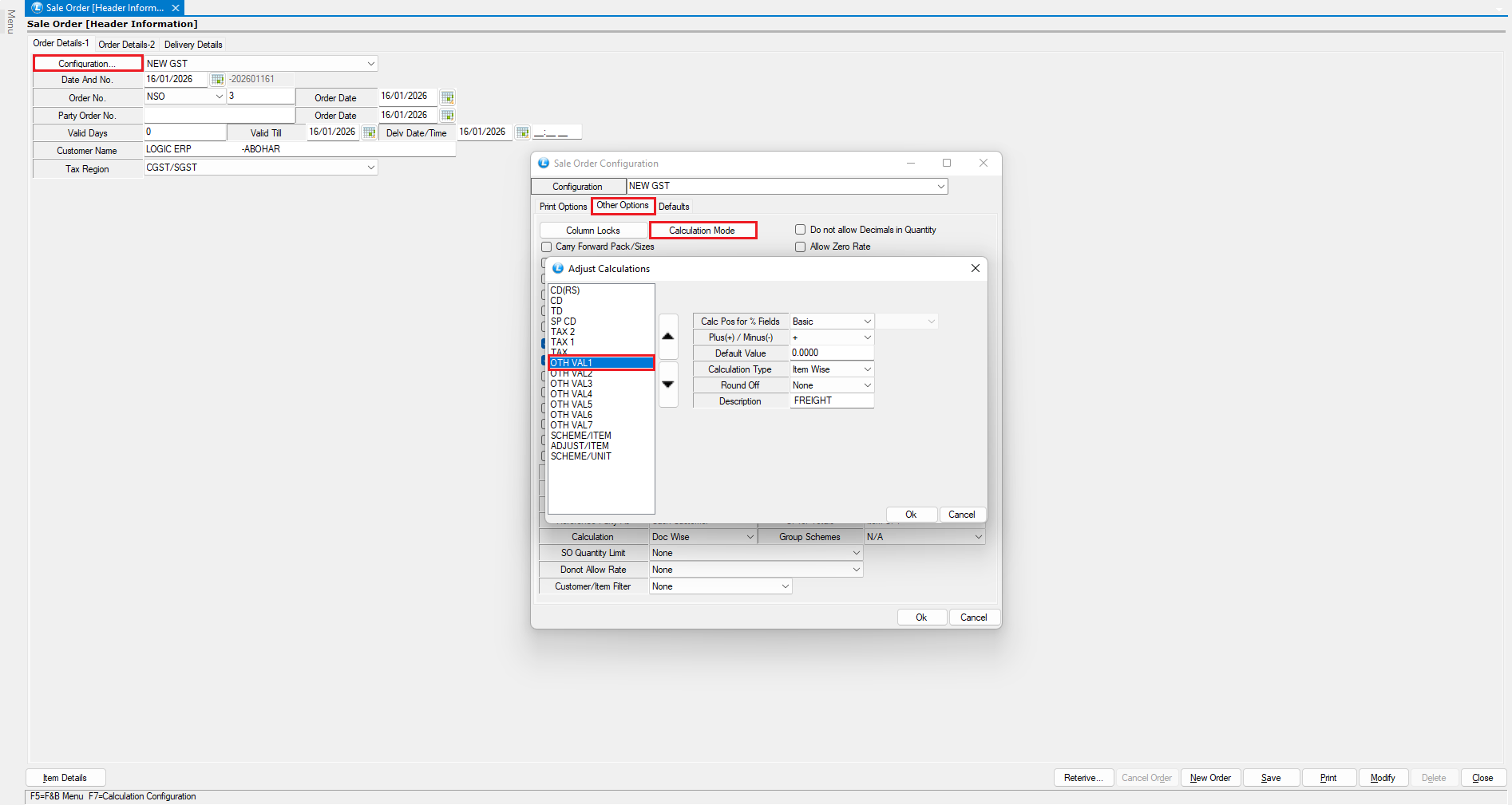
* Go to **Configuration** from the header section.
* Open **Calculation Mode**.
* Define whether **freight charges should be applied before or after tax**.
* Make any additional calculation adjustments as required.
***
### Conclusion
This is how you can **apply and manage freight charges in a Sales Order in Logic ERP**, either:
* **After tax**, or
* **Before tax**, at voucher level or system level.
This flexibility ensures accurate billing and compliance with your business calculation requirements.
---
# Agent Instructions
This documentation is published with GitBook. GitBook is the documentation platform designed so that both humans and AI agents can read, navigate, and reason over technical content effectively. Learn more at gitbook.com.
## Querying This Documentation
If you need additional information that is not directly available in this page, you can query the documentation dynamically by asking a question.
Perform an HTTP GET request on the current page URL with the `ask` query parameter, and the optional `goal` query parameter:
```
GET https://kb.logicerp.com/logic-erp-learning-hub-tutorials-and-best-practices/order-processing/sale-order/add-freight-charges-in-sales-orders.md?ask=&goal=
```
`ask` is the immediate question: it should be specific, self-contained, and written in natural language.
`goal` is optional and describes the broader end goal you are ultimately trying to accomplish on behalf of the user. GitBook uses it to tailor the answer towards what is most useful for that goal.
The response will contain a direct answer to the question and relevant excerpts and sources from the documentation.
Use this mechanism when the answer is not explicitly present in the current page, you need clarification or additional context, or you want to retrieve related documentation sections.