> For the complete documentation index, see [llms.txt](https://kb.logicerp.com/llms.txt). Markdown versions of documentation pages are available by appending `.md` to page URLs; this page is available as [Markdown](https://kb.logicerp.com/logic-erp-learning-hub-tutorials-and-best-practices/order-processing/sale-order-amendment-notes.md).
# Sale Order Amendment Notes
**YouTube:** [How to Amend Sales Orders with Audit Trail Tracking?](https://www.youtube.com/watch?v=YxcCP-rzEjU)
## How to Amend Sales Orders with Audit Trail Tracking?
In this tutorial, we will learn how to create and manage **Sale Order Amendment Notes** in **Logic ERP**. This feature enables you to amend quantities, rates, and remarks in a sale order while maintaining complete transparency and audit tracking.
***
### Open the Sale Order to Be Amended
* Open the **Sale Order** module
* Identify and review the sale order requiring amendment
* In this example, we will amend **Sale Order No. 19**
***
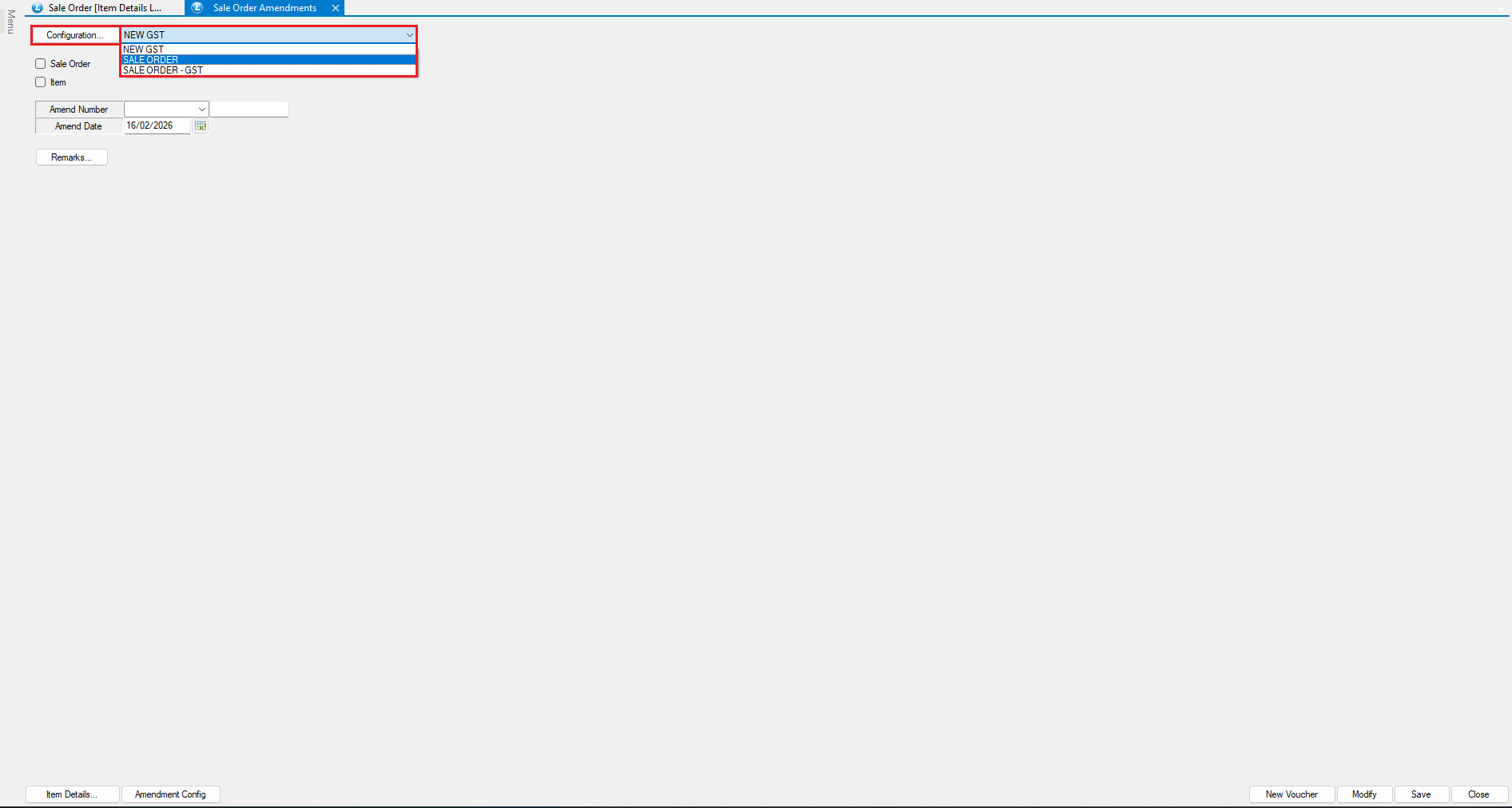
### Open Sale Order Amendment Notes Module
* Navigate to **Sale Order Amendment Notes**
* From the **Configuration** dropdown:
* Select the appropriate configuration
* Ensure correct system behavior and accurate processing
***
### Select Sale Order and Items
* Select the **Sale Order** to be amended
* Choose the **specific items** from the selected sale order that require modification
***
### Amendment Details Configuration
* The **Amendment Number** and **Amendment Date** are auto generated by the system
* The amendment date can be modified, if required
* Enter suitable **Remarks** for future reference
**Set Up Prefix and Remark Configuration**
* Choose how **Sale Order Item Remarks** should be handled:
* Manually entered, or
* Automatically fetched from masters
* Define the **Sale Order Amendment Document Prefix**, if required
***
### Amend Item Details
* Go to the **Item Details** section
* Review the selected item details
* Amend the **Quantity** and **Rate** as required
* Enter item-specific **Remarks** manually
* Click **Save** to update the amendment document
***
### Review the Amendment Impact
* Open the amended **Sale Order**
* Observe the following:
* **Original item details** (quantity and rate) are displayed in **red**
* **Amended values** are shown separately with updated quantity and rate
* Remarks entered during amendment are clearly visible
This visual distinction ensures clarity between original and revised values.
***
### Conclusion
Sale Order Amendment Notes provide:
* Complete transparency of changes
* Clear audit trails for quantity and rate modifications
* Accurate tracking without altering original records
This ensures better control, compliance, and reliability in sales order management.
---
# Agent Instructions
This documentation is published with GitBook. GitBook is the documentation platform designed so that both humans and AI agents can read, navigate, and reason over technical content effectively. Learn more at gitbook.com.
## Querying This Documentation
If you need additional information that is not directly available in this page, you can query the documentation dynamically by asking a question.
Perform an HTTP GET request on the current page URL with the `ask` query parameter, and the optional `goal` query parameter:
```
GET https://kb.logicerp.com/logic-erp-learning-hub-tutorials-and-best-practices/order-processing/sale-order-amendment-notes.md?ask=&goal=
```
`ask` is the immediate question: it should be specific, self-contained, and written in natural language.
`goal` is optional and describes the broader end goal you are ultimately trying to accomplish on behalf of the user. GitBook uses it to tailor the answer towards what is most useful for that goal.
The response will contain a direct answer to the question and relevant excerpts and sources from the documentation.
Use this mechanism when the answer is not explicitly present in the current page, you need clarification or additional context, or you want to retrieve related documentation sections.