# Create Cartons

YouTube: [Maintain Stock Carton/Set wise](https://www.youtube.com/watch?v=GM58QLPlh5M\&t=7s)

## Maintain Stock Carton/Set wise

Logic ERP offers an efficient feature to manage stock **carton-wise** and **set-wise**, ensuring accurate tracking and fast billing.

### **Steps to Create Sets**

* Navigate to the **Setup/Setup Item** and the click on "**Define Sets"**.
* Click on the **Refresh** button.
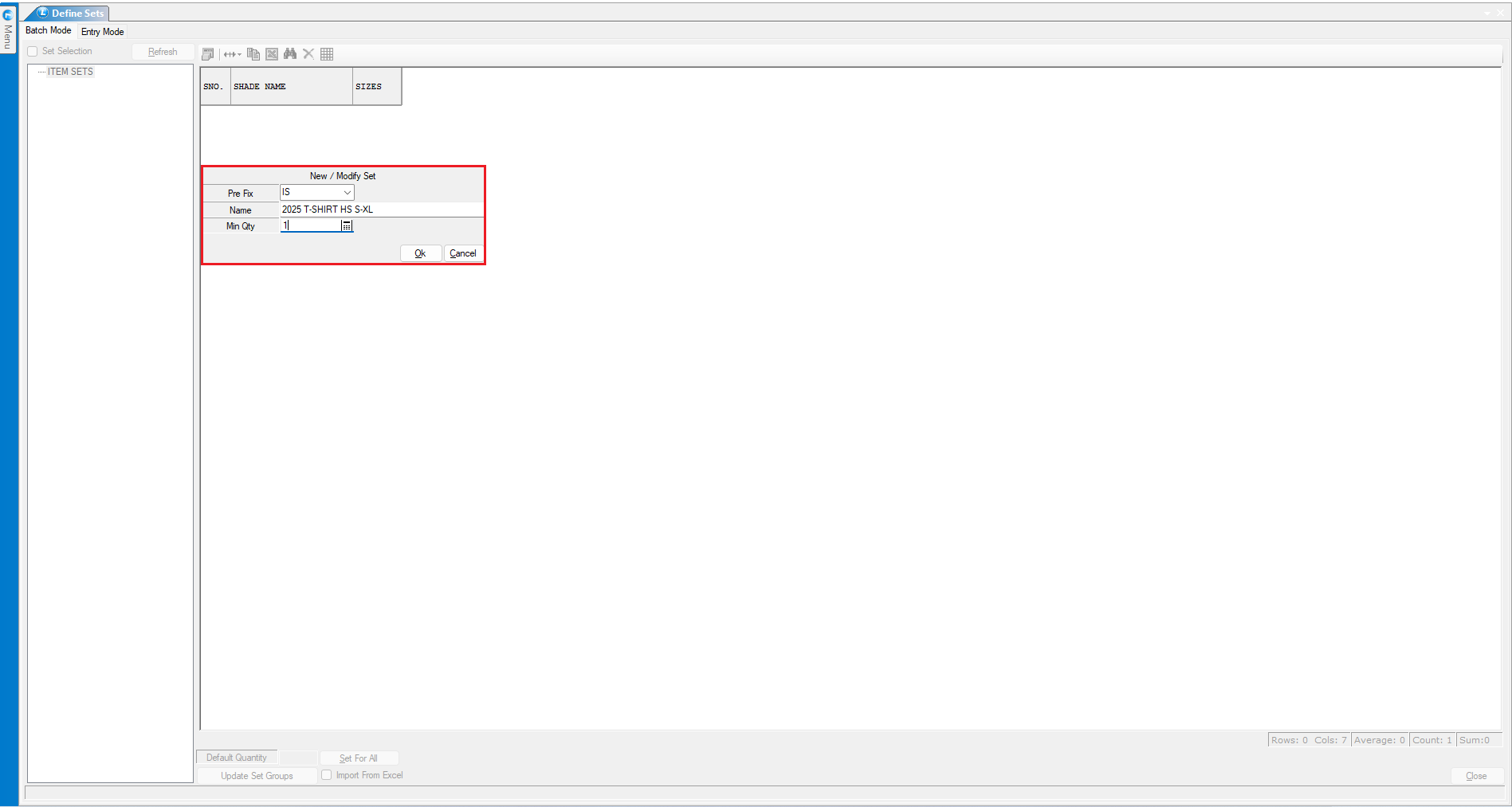
* Right-click on the **Item Set** to create a new set.
* Set the **prefix** and **assign a name** to the set.

<figure><img src="/files/z4dqI3yH28b76twVorKG" alt=""><figcaption><p>This picture illustrates how you can create sets.</p></figcaption></figure>

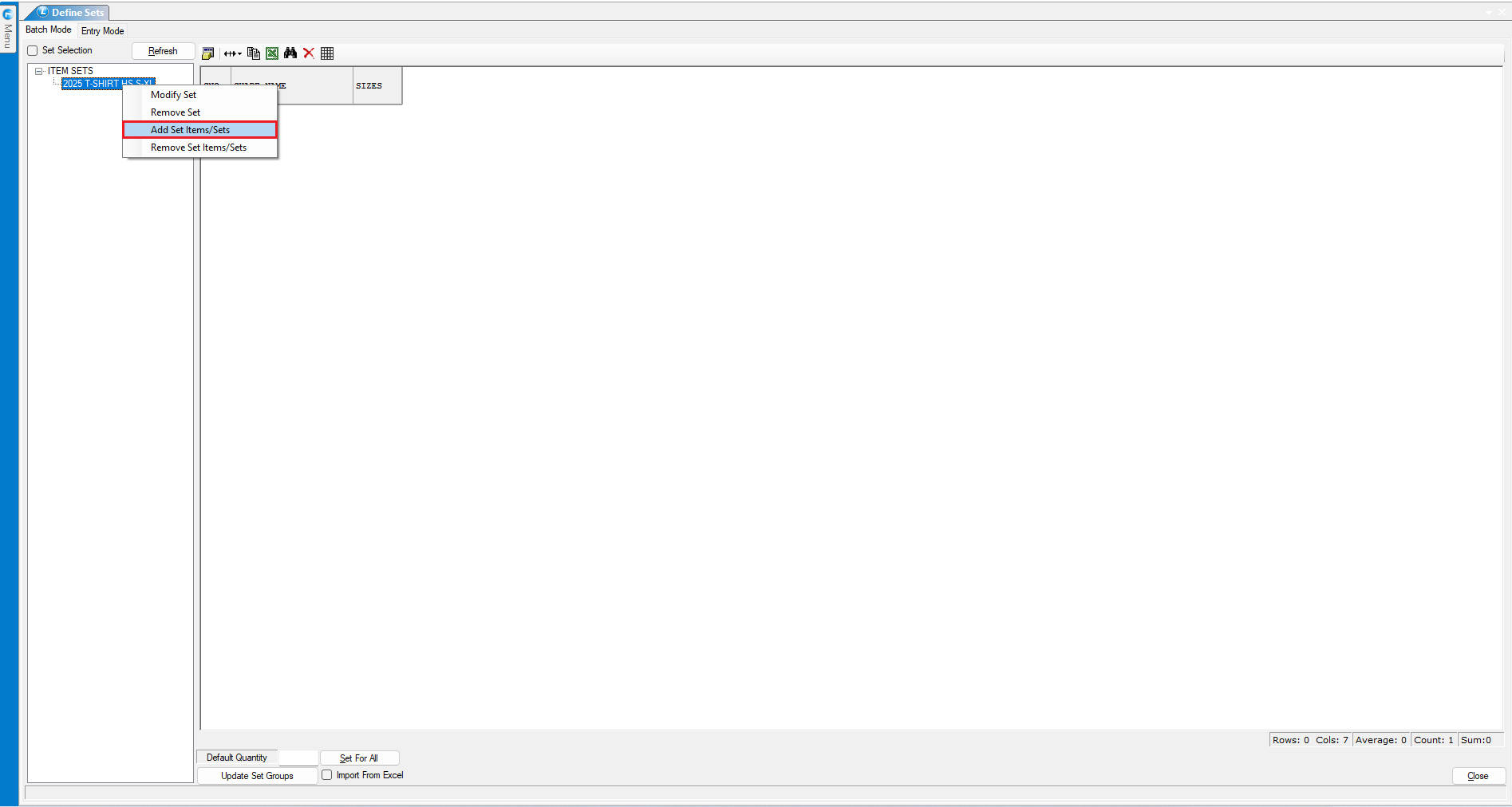
* Right-click on the newly created set and select **"Add Set Items"**.

<figure><img src="/files/lrOLrQQ0ttUbqMQIWn9l" alt=""><figcaption><p>This picture illustrates how you can add items to a set.</p></figcaption></figure>

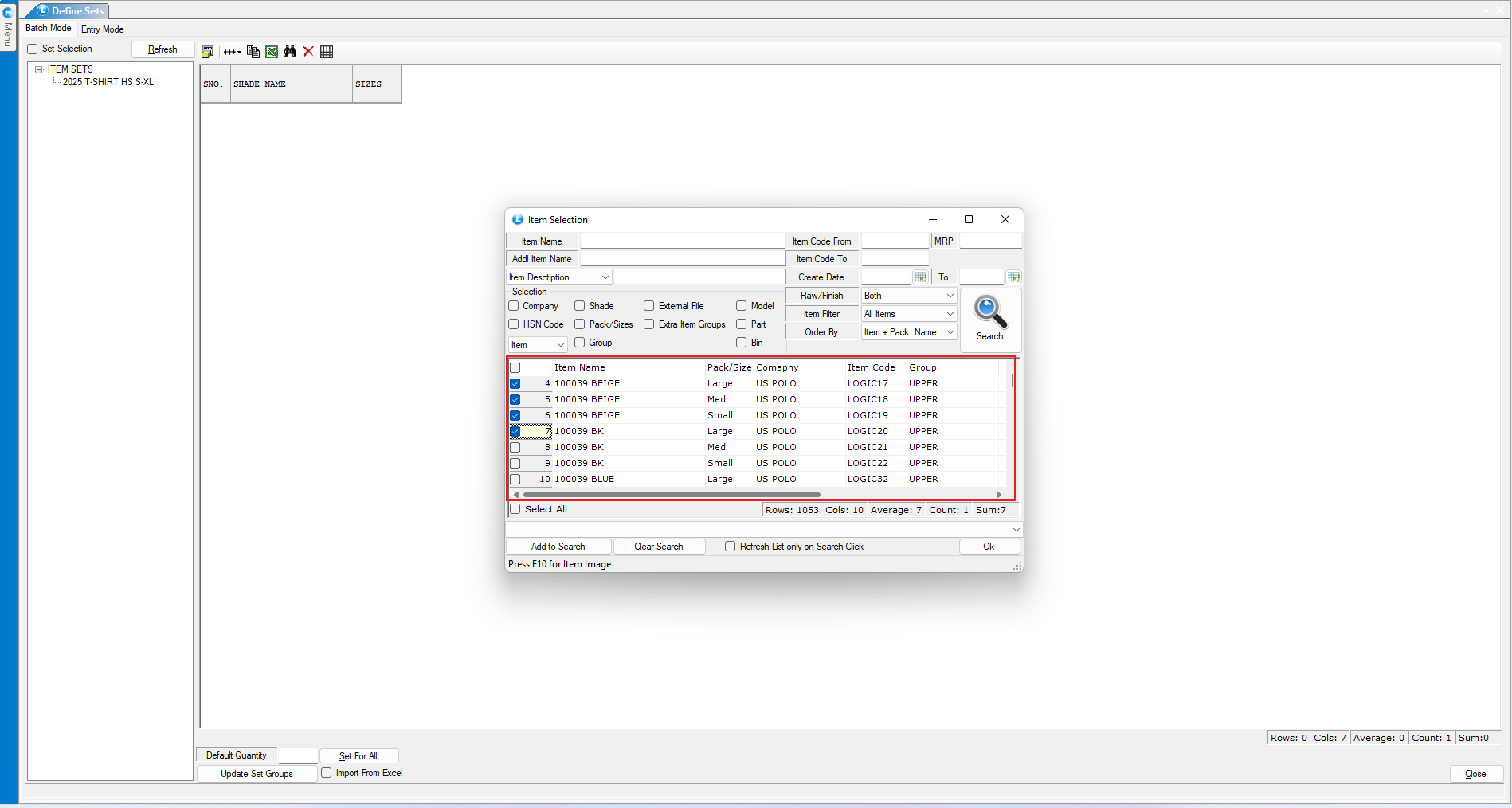
* Choose the items to be added to the set.
* The created set can now be viewed with shade-wise sizes.

<figure><img src="/files/rcwF8g3cGEHMD84Qt7ss" alt=""><figcaption><p>This picture shows how you can select items in a set.</p></figcaption></figure>

### **Steps to Create Cartons**

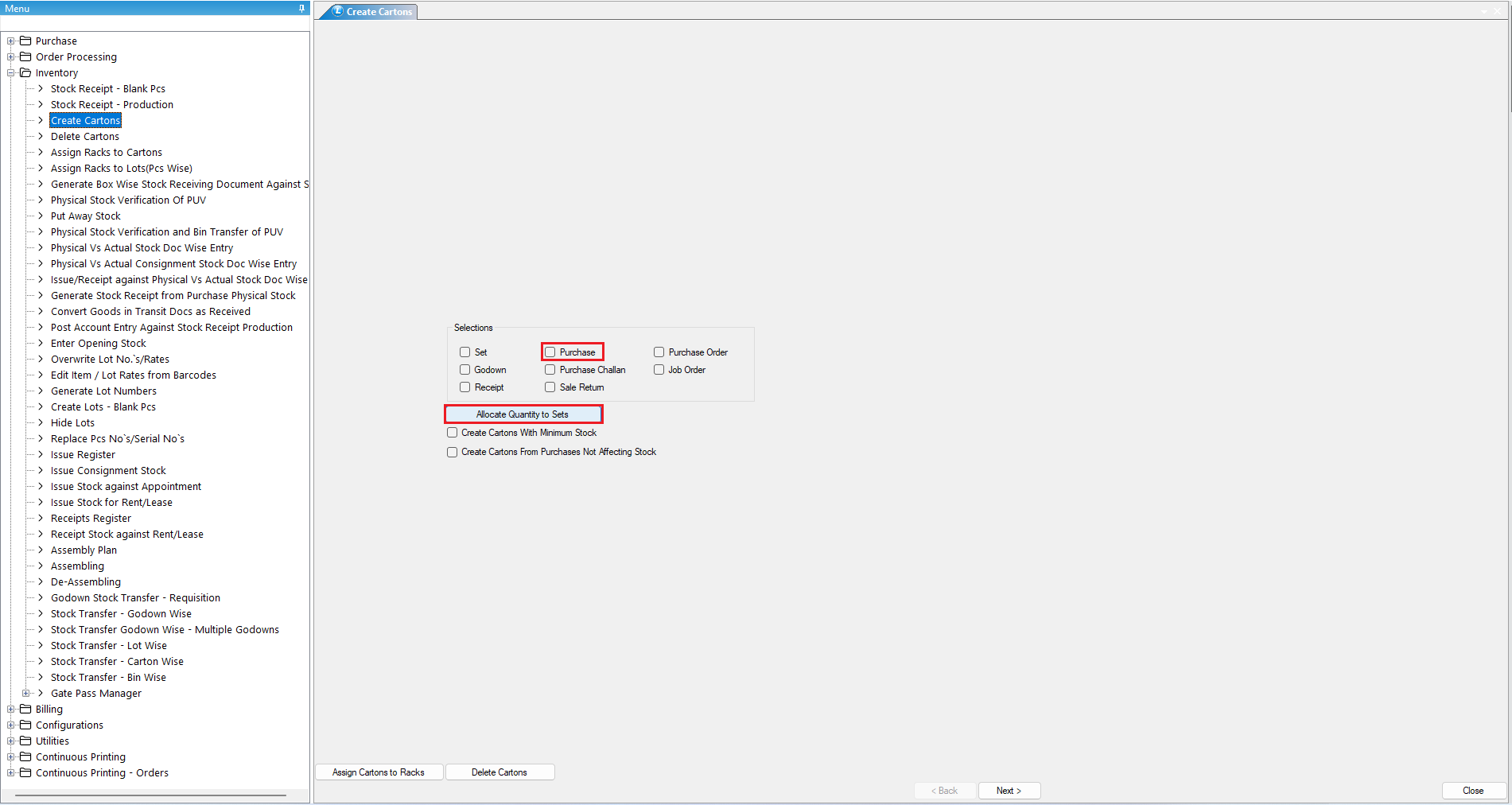
* Navigate to **Inventory** and then click on "**Create Cartons".**
* Select the **purchase** from which the carton is to be created.
* Click on **"Allocate Quantity to Sets"**.

<figure><img src="/files/NQWhnyT1t5S9UGM9TGA3" alt=""><figcaption><p>This picture illustrates how you can allocate quantity to sets.</p></figcaption></figure>

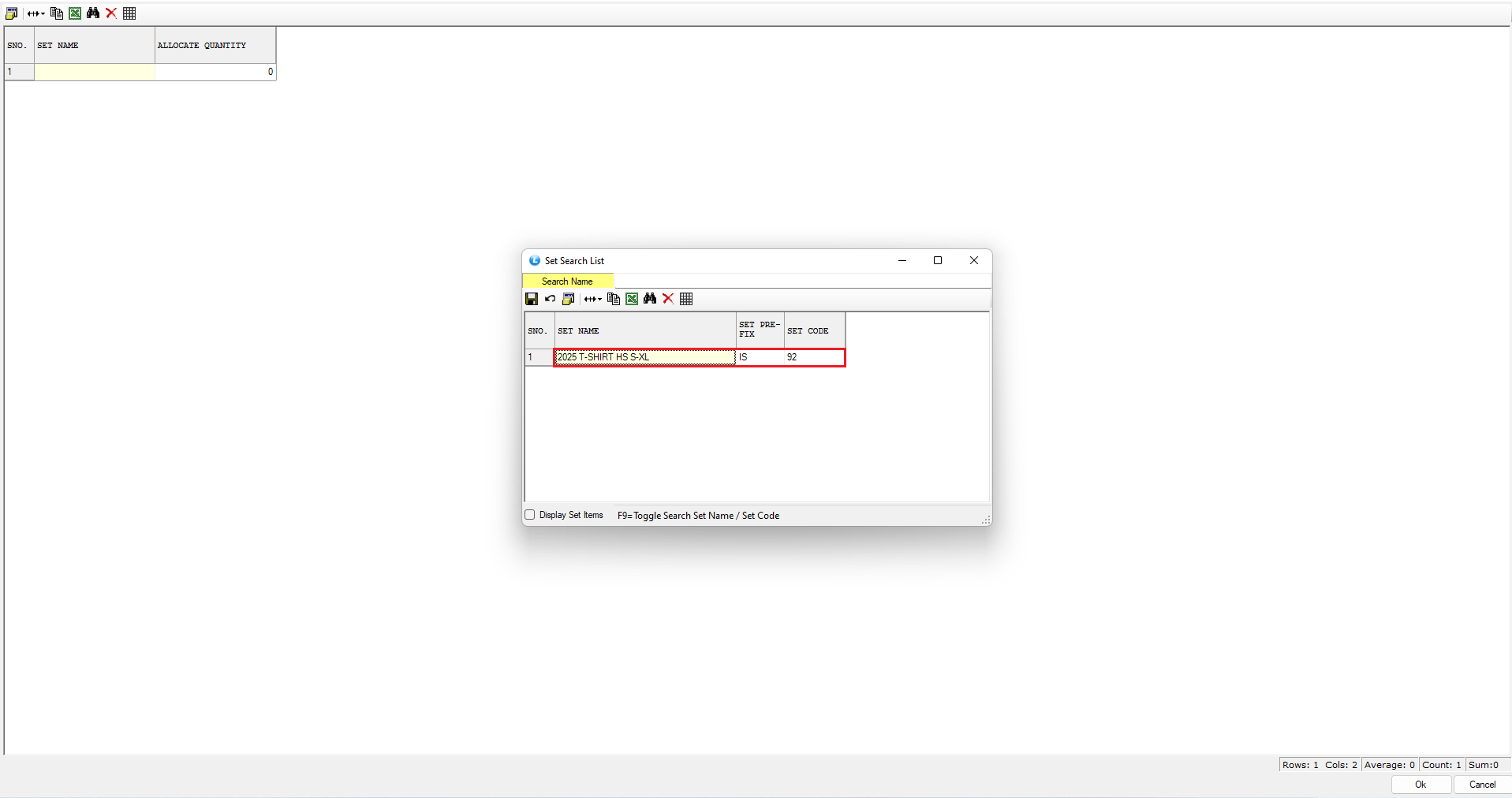
* Enter the **set name** and allocate the quantity.

<figure><img src="/files/lCebzt4ZV2tO0GKmngfU" alt=""><figcaption><p>This picture illustrates how you can select a set and define the quantity.</p></figcaption></figure>

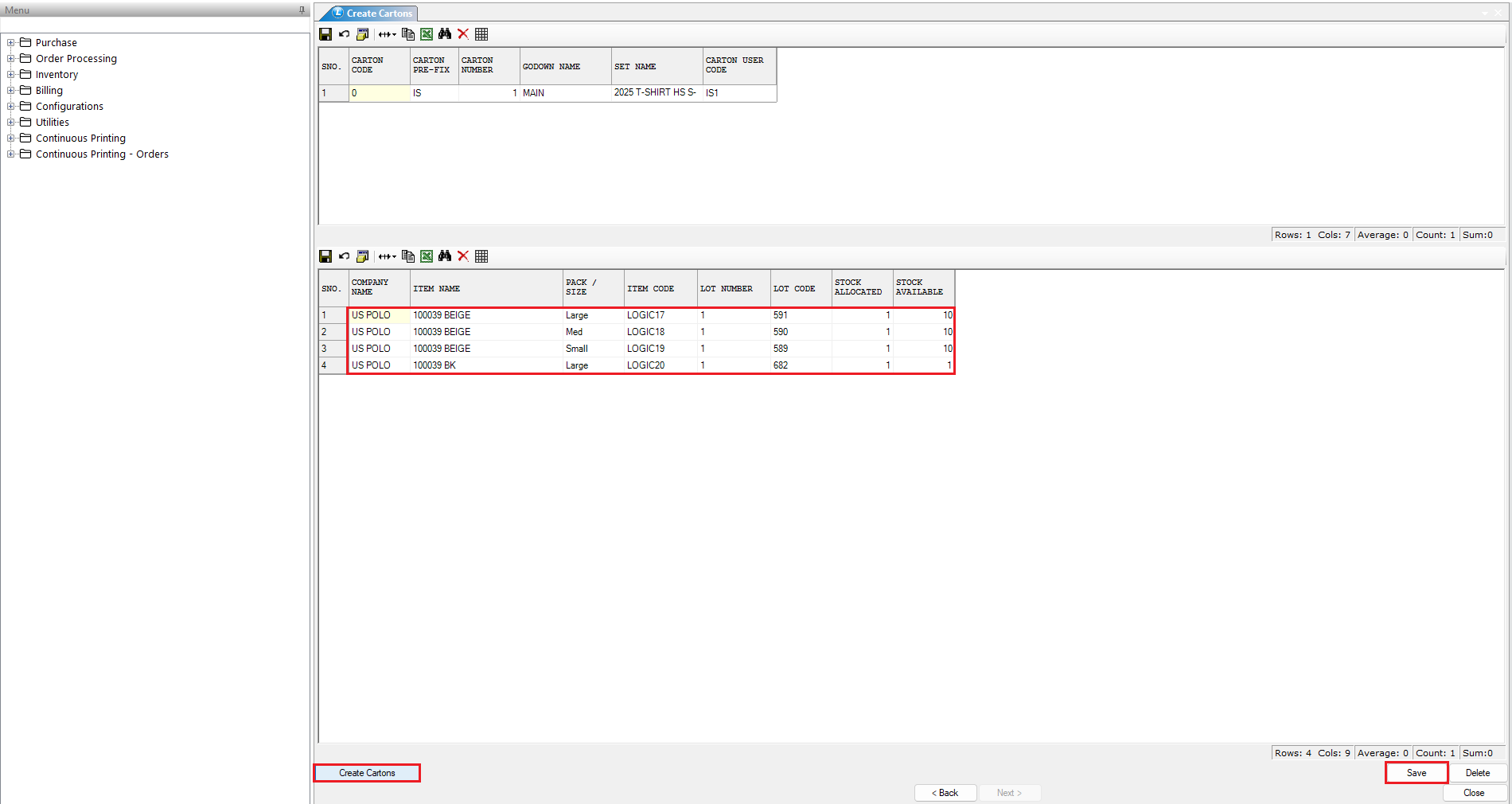
* Click on **Next** and then **"Create Cartons"**.
* The system displays respective **item stock**, allowing cartons to be created accordingly.
* Save the details and repeat the process for additional cartons.
* Cartons are successfully created, improving stock management efficiency.

<figure><img src="/files/xyxxAnUZpmUytfY91c5i" alt=""><figcaption><p>As you can see, upon clicking "Create Carton," the stock and items are displayed.</p></figcaption></figure>

### **Checking Carton Stock Reports**

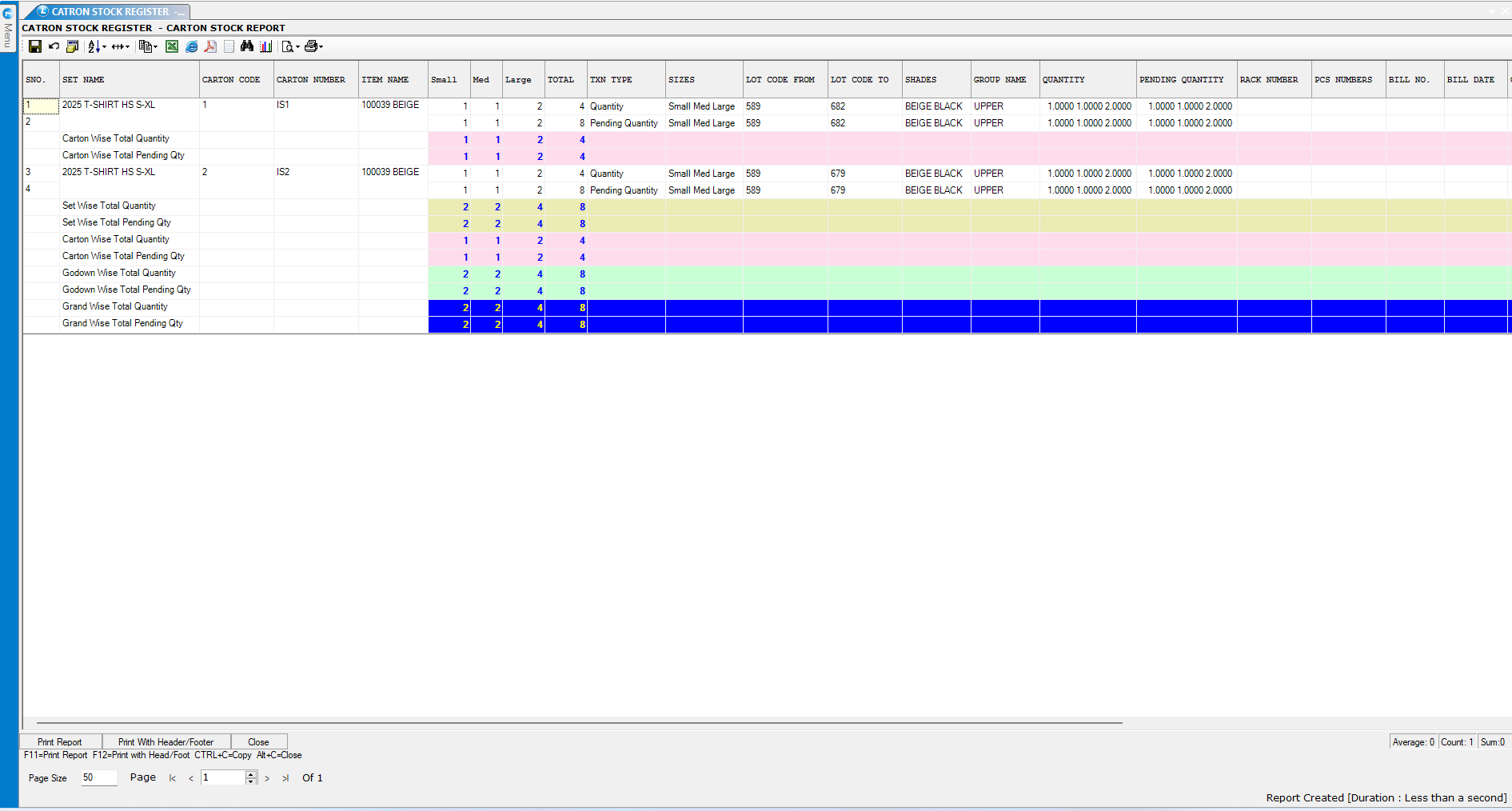
* Use the **Carton Stock Report** to track carton-wise stock.
* This report provides visibility into stock levels for better inventory control.

<figure><img src="/files/g2AxpbWxzxKeEnKvIuVW" alt=""><figcaption><p>Here, you can see that the carton-wise report has been generated.</p></figcaption></figure>

### **Implementing Carton-Wise Billing**

* Click on **Retrieve Order** and select **Cartons** from the drop-down list.
* Click on **Refresh** to display the cartons created.
* Select the **carton** for which billing is to be processed.

### **Benefits of Carton & Set-Wise Management in Logic ERP**

* **Enhanced accuracy** in stock allocation.
* **Faster and more efficient billing** processes.
* **Complete traceability** of cartons and sets.
* **Reduced risk of errors** in product and carton management.
* **Detailed data reporting** to improve productivity and decision-making.

This feature in Logic ERP ensures seamless stock tracking, reduces errors, and enhances operational efficiency.


---

# Agent Instructions: Querying This Documentation

If you need additional information that is not directly available in this page, you can query the documentation dynamically by asking a question.

Perform an HTTP GET request on the current page URL with the `ask` query parameter:

```
GET https://kb.logicerp.com/logic-erp-learning-hub-tutorials-and-best-practices/inventory/create-cartons.md?ask=<question>
```

The question should be specific, self-contained, and written in natural language.
The response will contain a direct answer to the question and relevant excerpts and sources from the documentation.

Use this mechanism when the answer is not explicitly present in the current page, you need clarification or additional context, or you want to retrieve related documentation sections.