> For the complete documentation index, see [llms.txt](https://kb.logicerp.com/llms.txt). Markdown versions of documentation pages are available by appending `.md` to page URLs; this page is available as [Markdown](https://kb.logicerp.com/logic-erp-learning-hub-tutorials-and-best-practices/inventory/continuous-printing/sale-return.md).
# Sale Return
**YouTube:** [How to Generate Continuous Printing for Sale Returns using Old Version Print Configuration?](https://www.youtube.com/watch?v=PNK_0LvHsmY)
## How to Generate Continuous Printing for Sale Returns using Old Version Print Configuration?
In this tutorial, we will learn how to generate **Continuous Printing for a Sale Return in Logic ERP**. This feature allows you to print multiple sale return documents quickly and efficiently in a single process.
***
### Accessing the Continuous Printing Module
Follow these steps to access the Sale Return continuous printing option:
* Navigate to the **Inventory Module**.
* Expand the **Continuous Printing** section.
* Click on **Sale Return** to open the printing window.
**Retrieving Sale Return Documents**
* To view the available Sale Return documents.
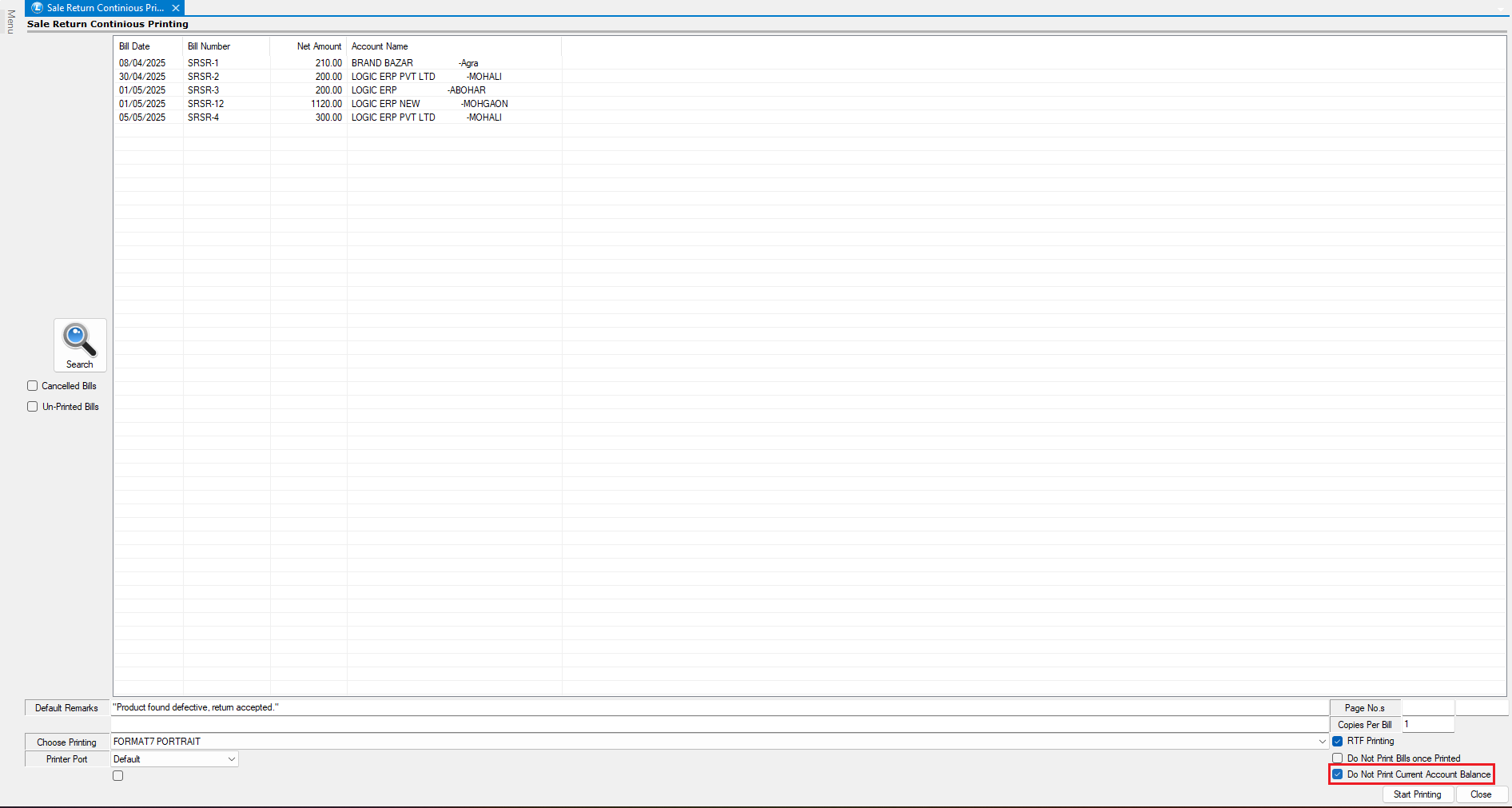
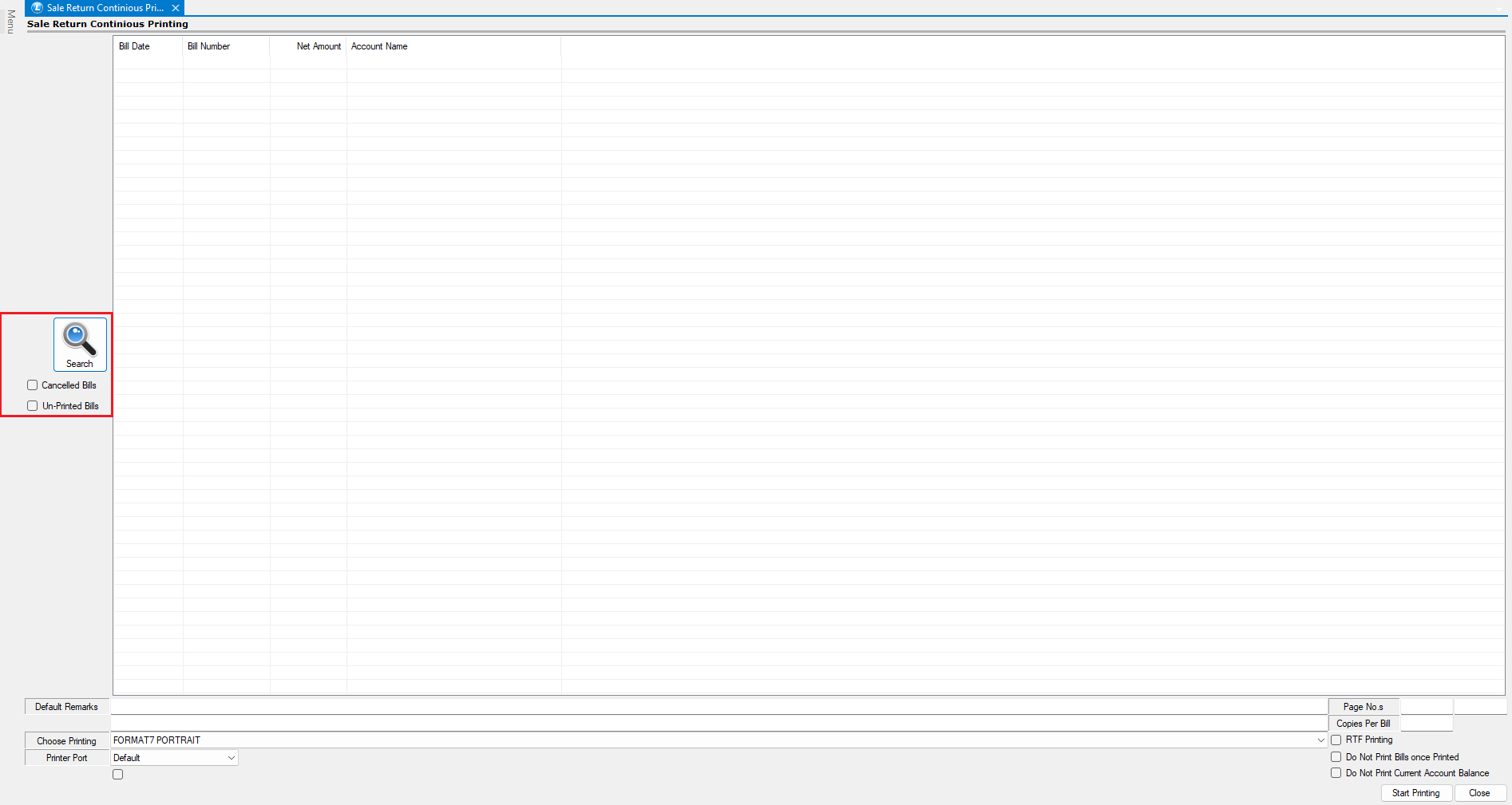
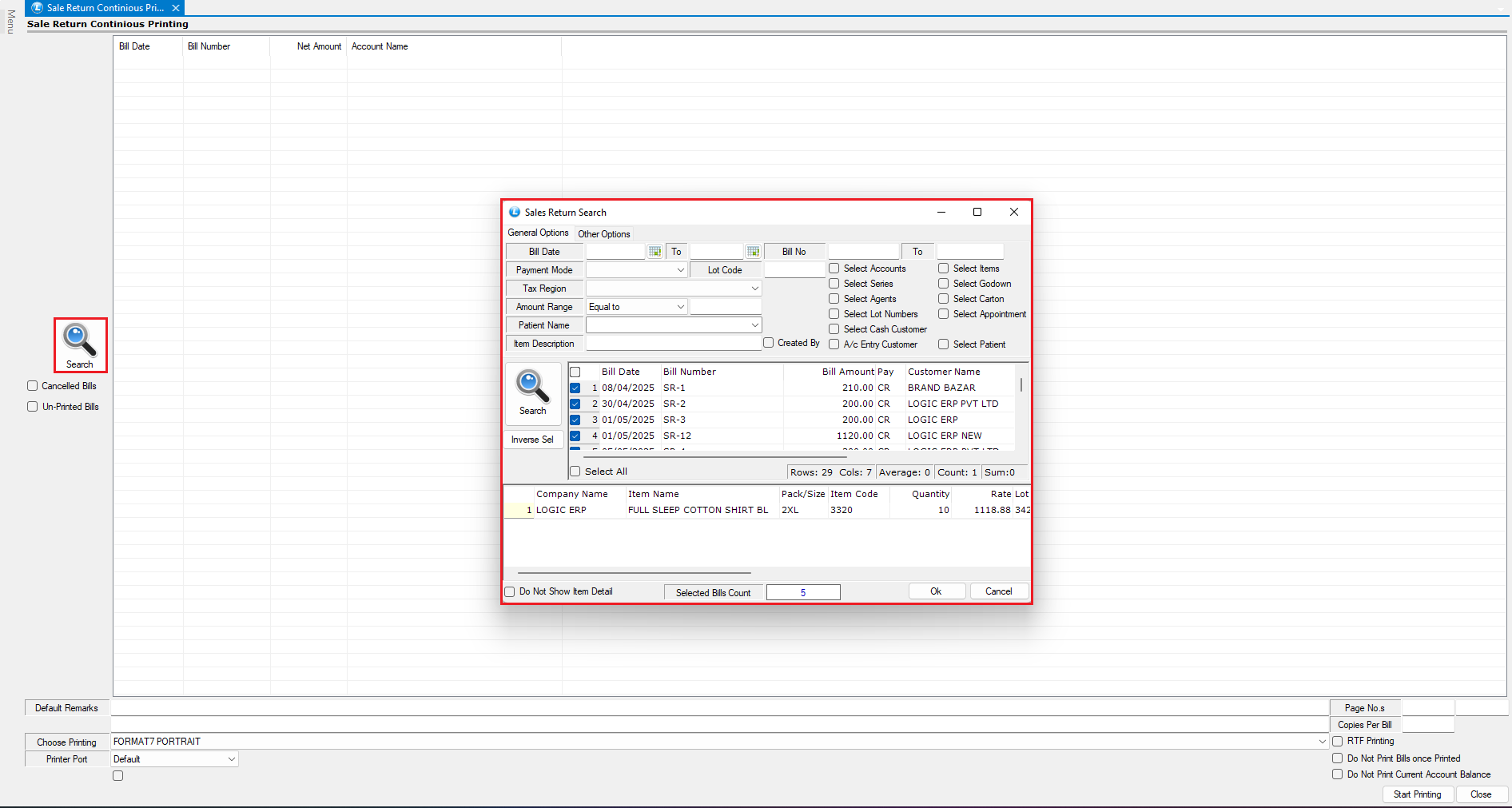
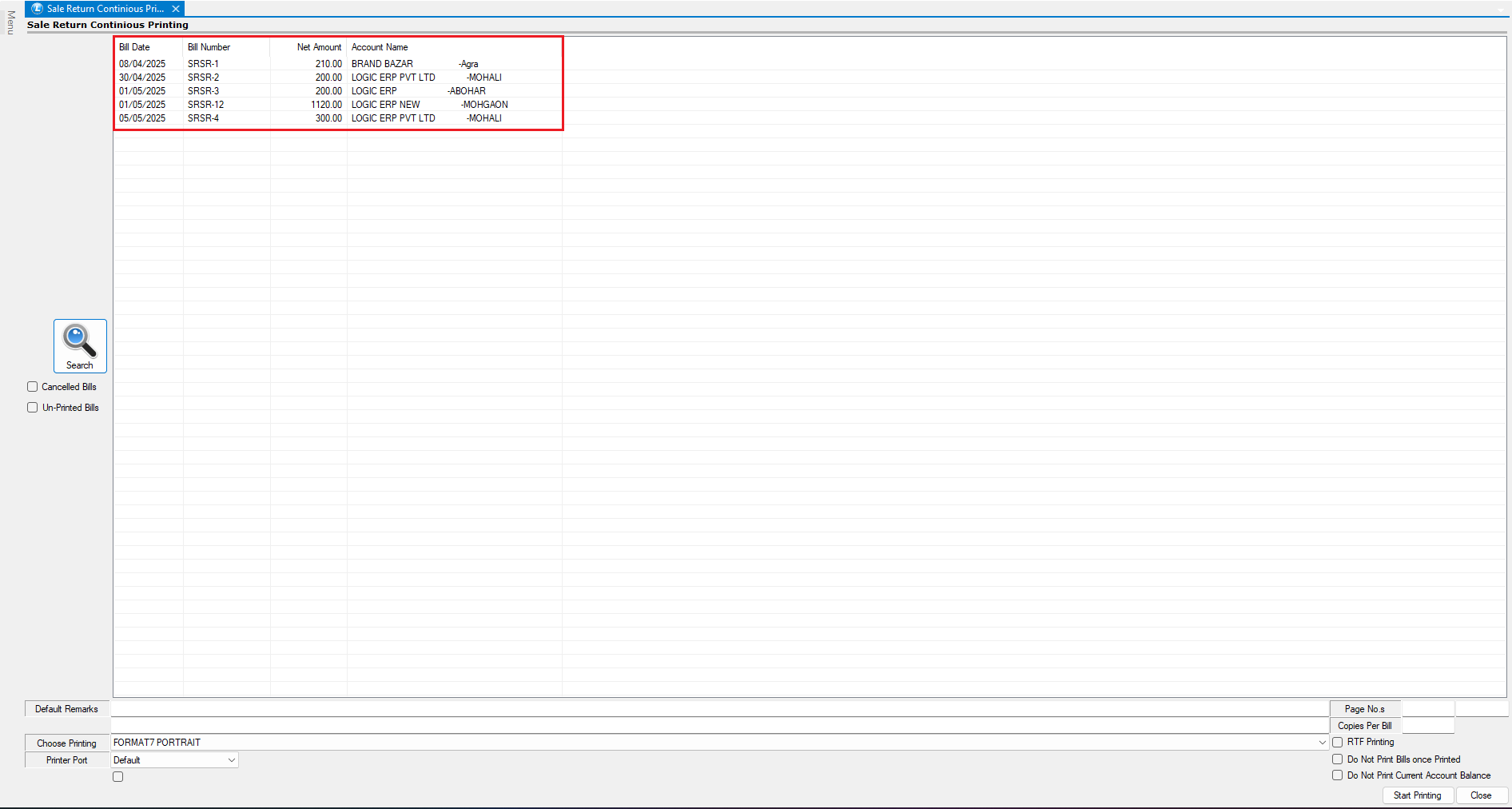
* Click on the **Search** button to display all Sale Return documents available in the system.
* You can apply filters to refine the results, such as:
* **Cancelled Bills**
* **Un-Printed Bills**
* For this demonstration, we will proceed **without applying any filters** and review all available Sale Return bills.
***
### Selecting Documents for Printing
Once the list is displayed:
* Select the **Sale Return documents** for which you want to generate the printout.
* After selecting the documents, the system will display **detailed information** of the selected entries.
***
### Choosing the Printing Format
Before printing, configure the required printing settings:
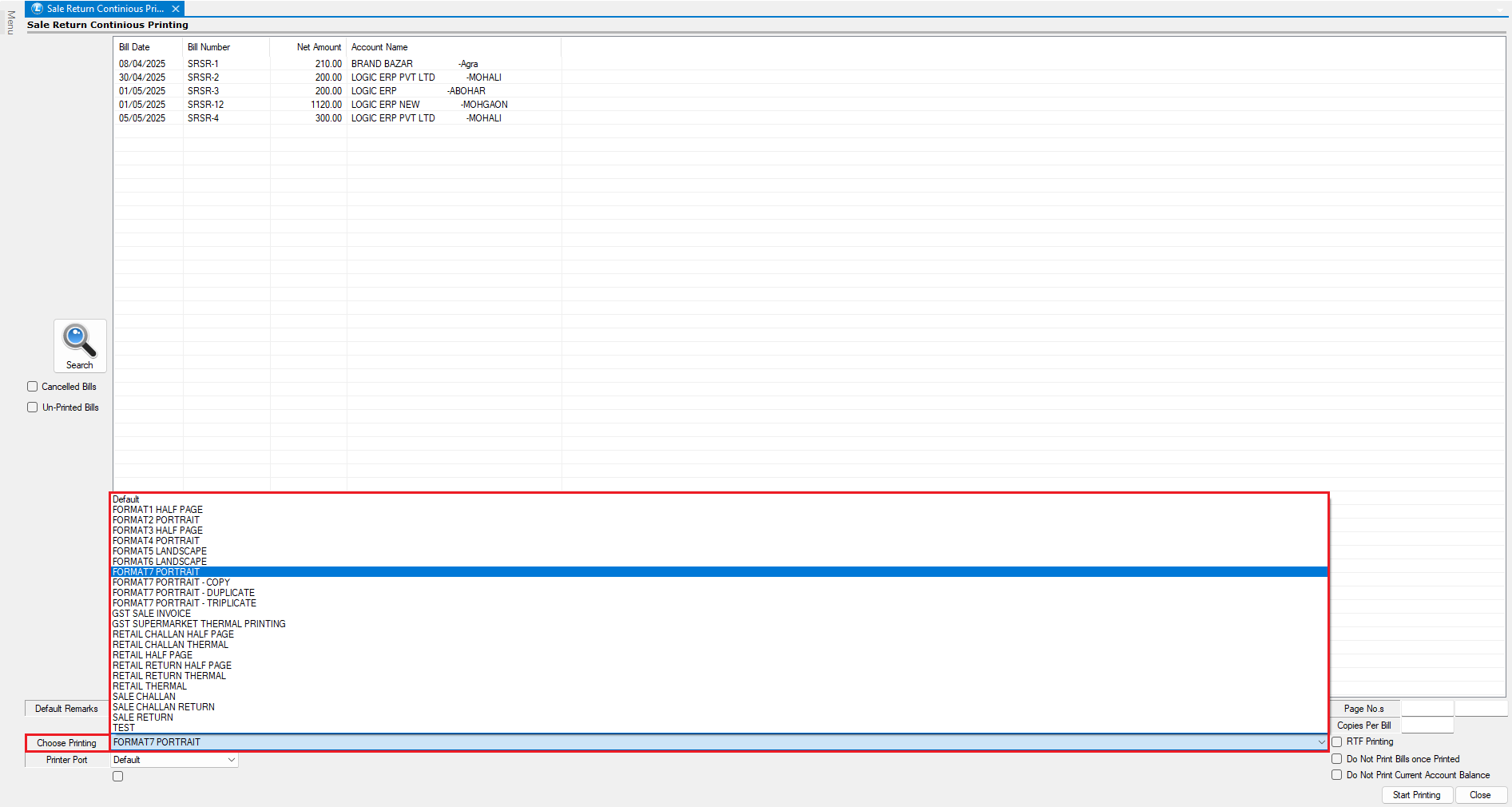
* Use the **Choose Printing** dropdown to select the desired **printing format** for the Sale Return document.
* Ensure the correct format is selected according to your business requirements.
***
### Adding Default Remarks
If required, you can include a standard message on the printed documents:
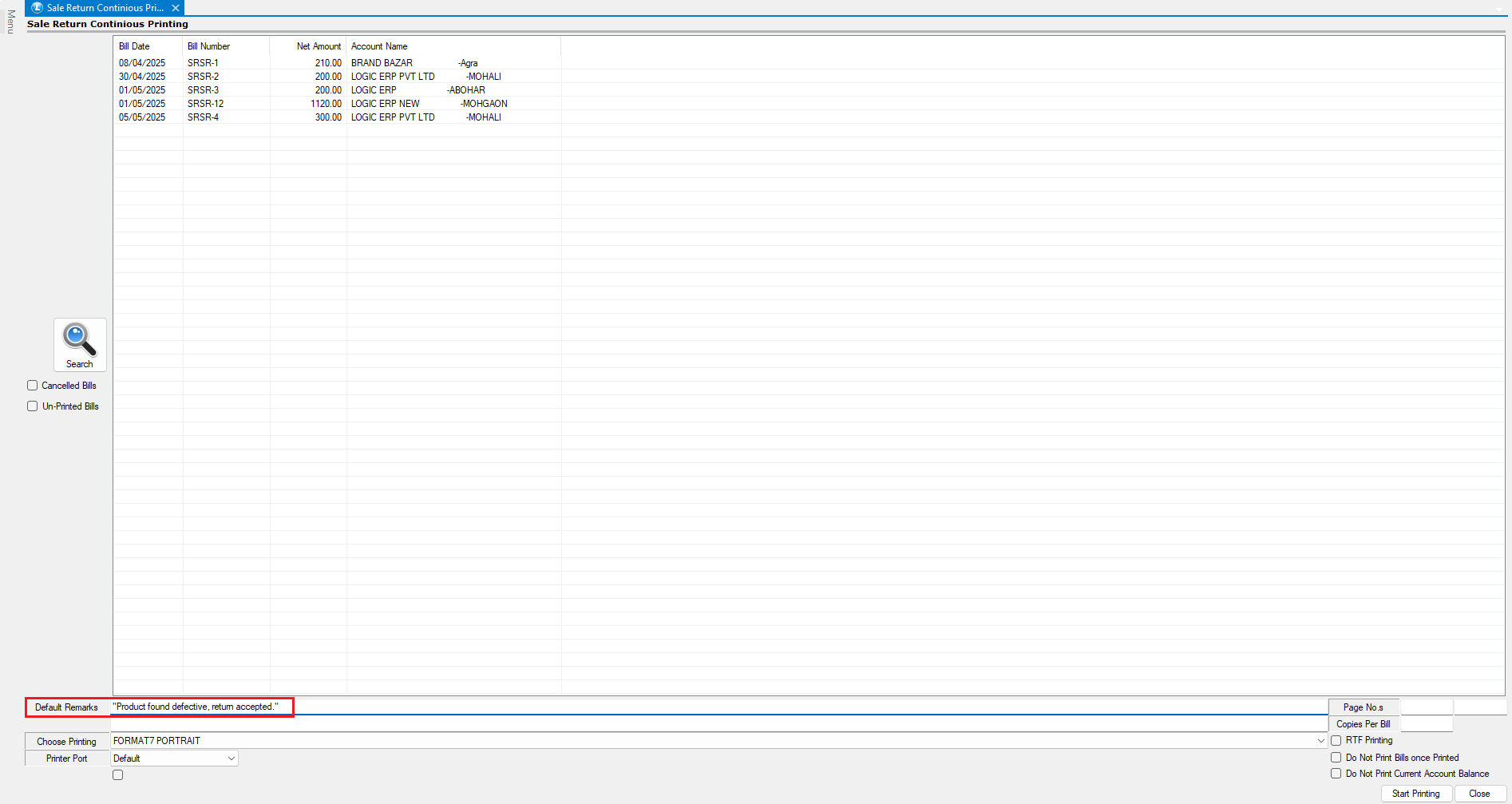
* Enter the message in the **Default Remarks** field.
* This remark will automatically appear on **all printed Sale Return documents**.
***
### Selecting the Printer
To define the printer settings:
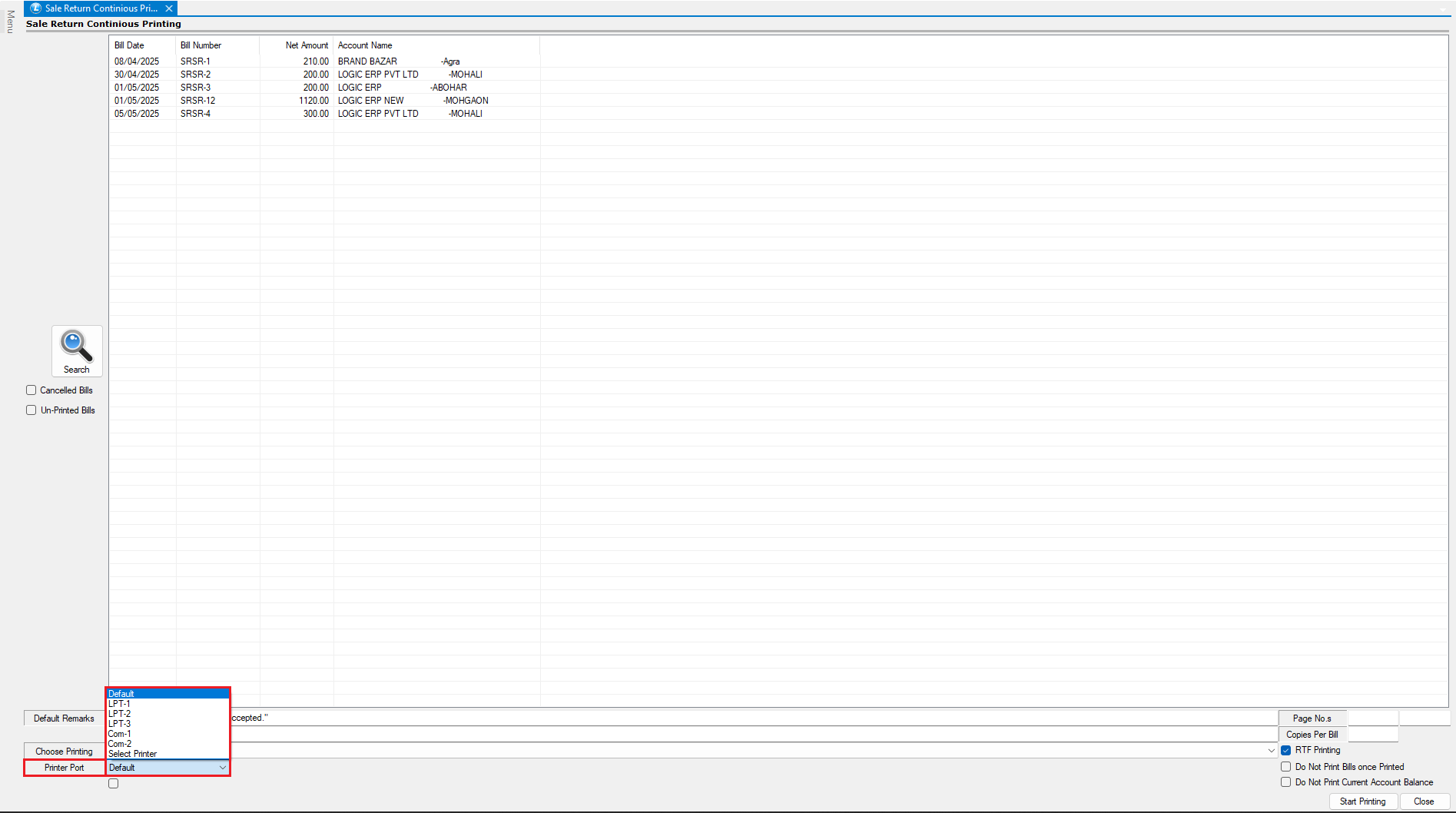
* Use the **Printer Port** dropdown to select the **printer connection** through which the documents will be printed.
***
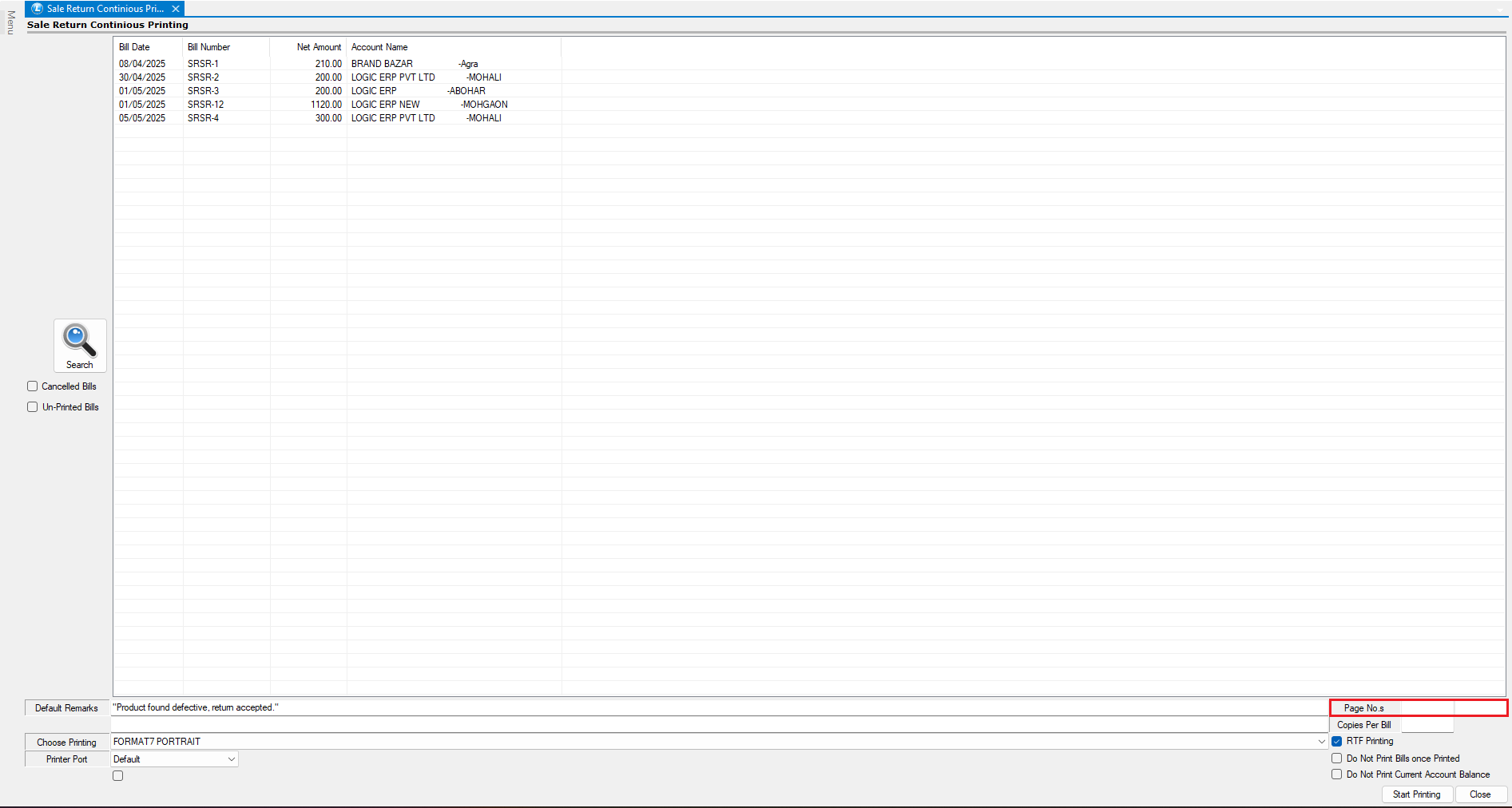
### Printing a Specific Page (Optional)
If you need to print only a particular page:
* Use the **Page Number** option.
* This allows printing a **specific page instead of the entire document**.
***
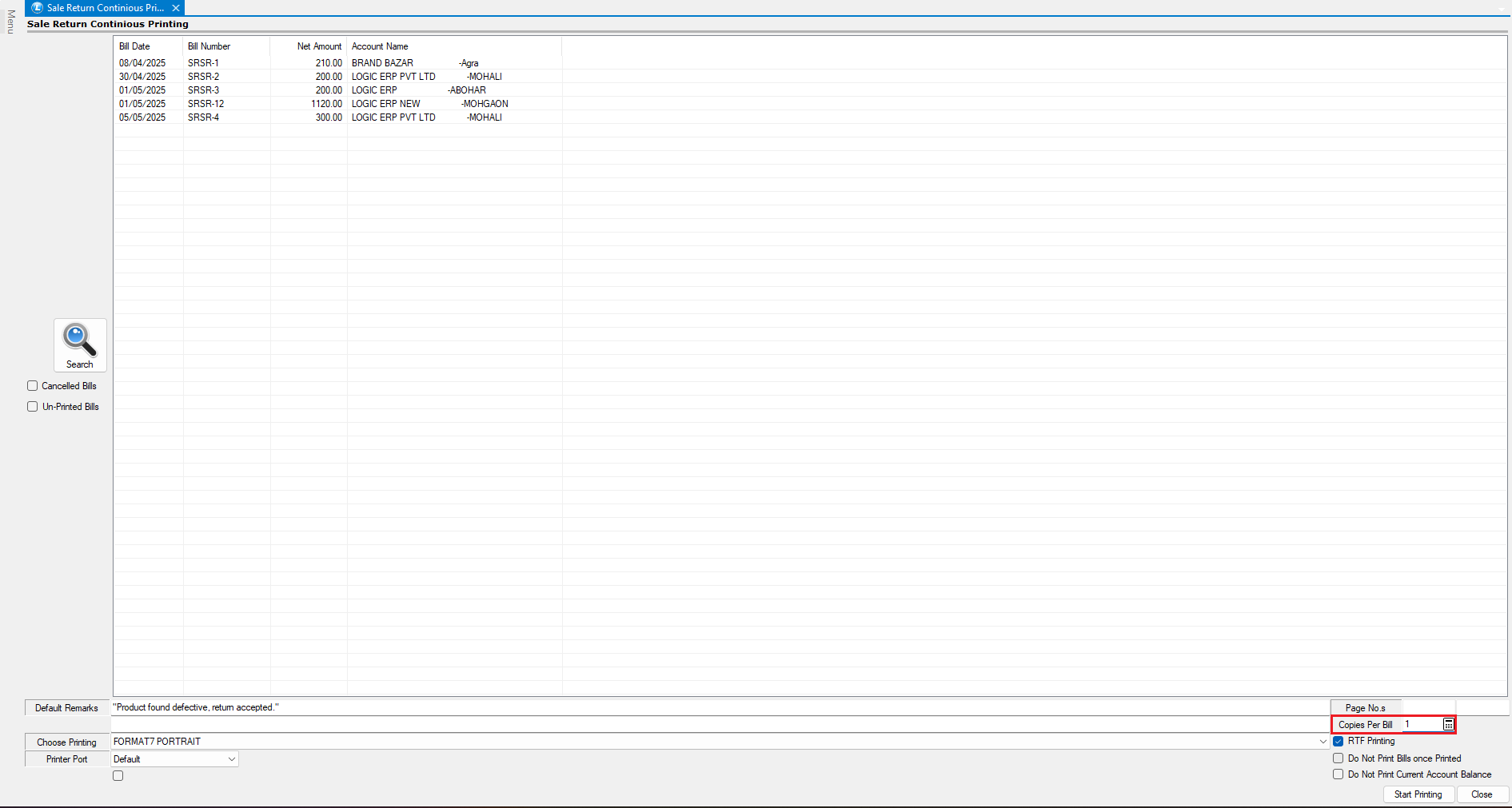
### Setting Number of Copies
To print multiple copies of each document:
* Enter the required number in the **Copies Per Bill** field.
* The system will print the specified number of copies for **each selected Sale Return document**.
***
### Starting Continuous Printing
Once all settings are configured:
* Click on **Start Printing** to begin the process.
* The system will prompt with two options:
* **Yes** – Display the **print preview** before printing each document.
* **No** – Print all selected documents **directly without preview**.
***
### Viewing the Print Preview
Let us proceed by selecting **Yes**.
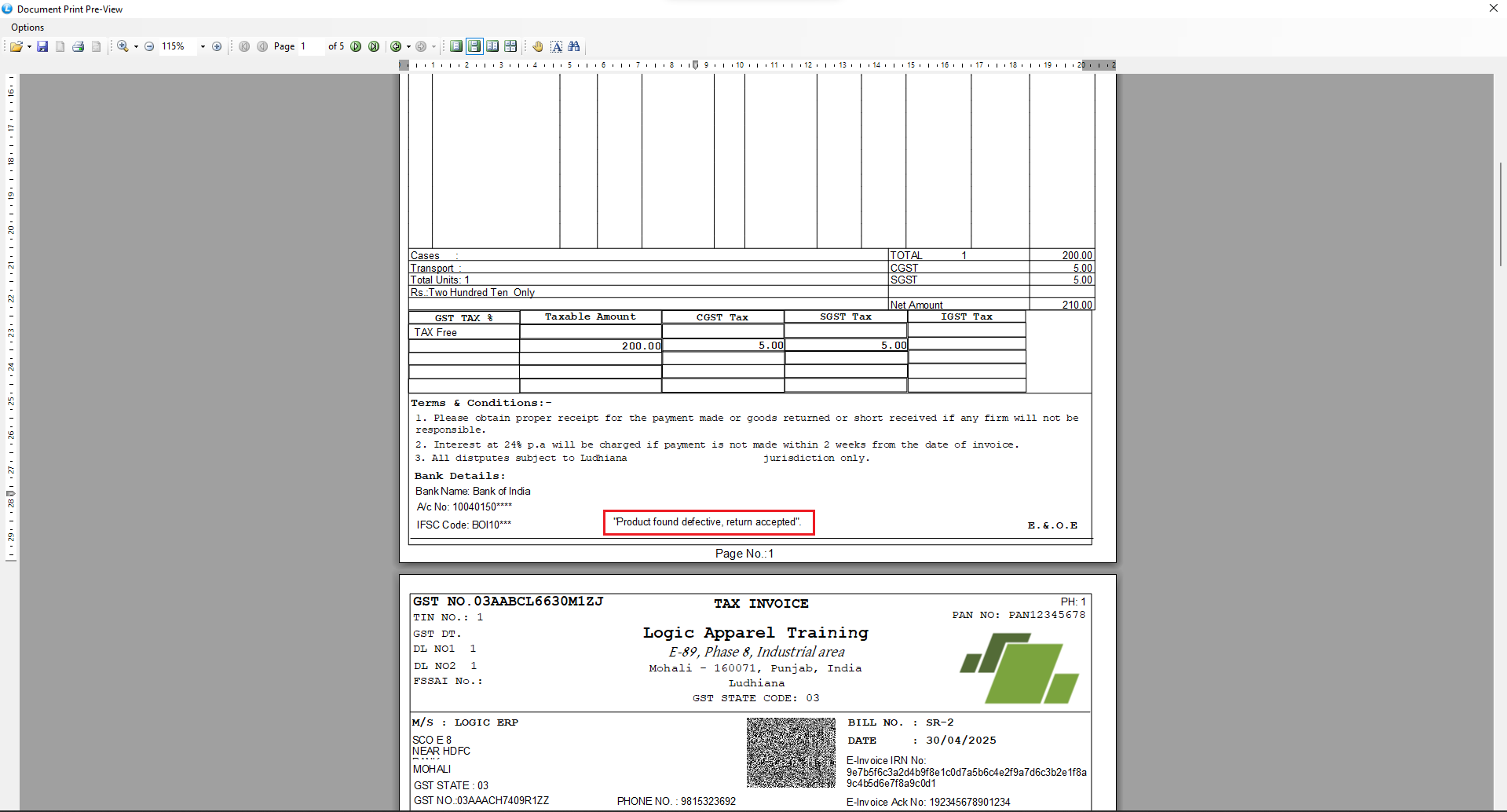
* The **Print Preview** of the selected Sale Return document will appear on the screen.
* The **remarks entered in the Default Remarks field** will also be visible on the printed document.
***
### Hiding Party Current Account Balance
If required, you can hide the customer's account balance:
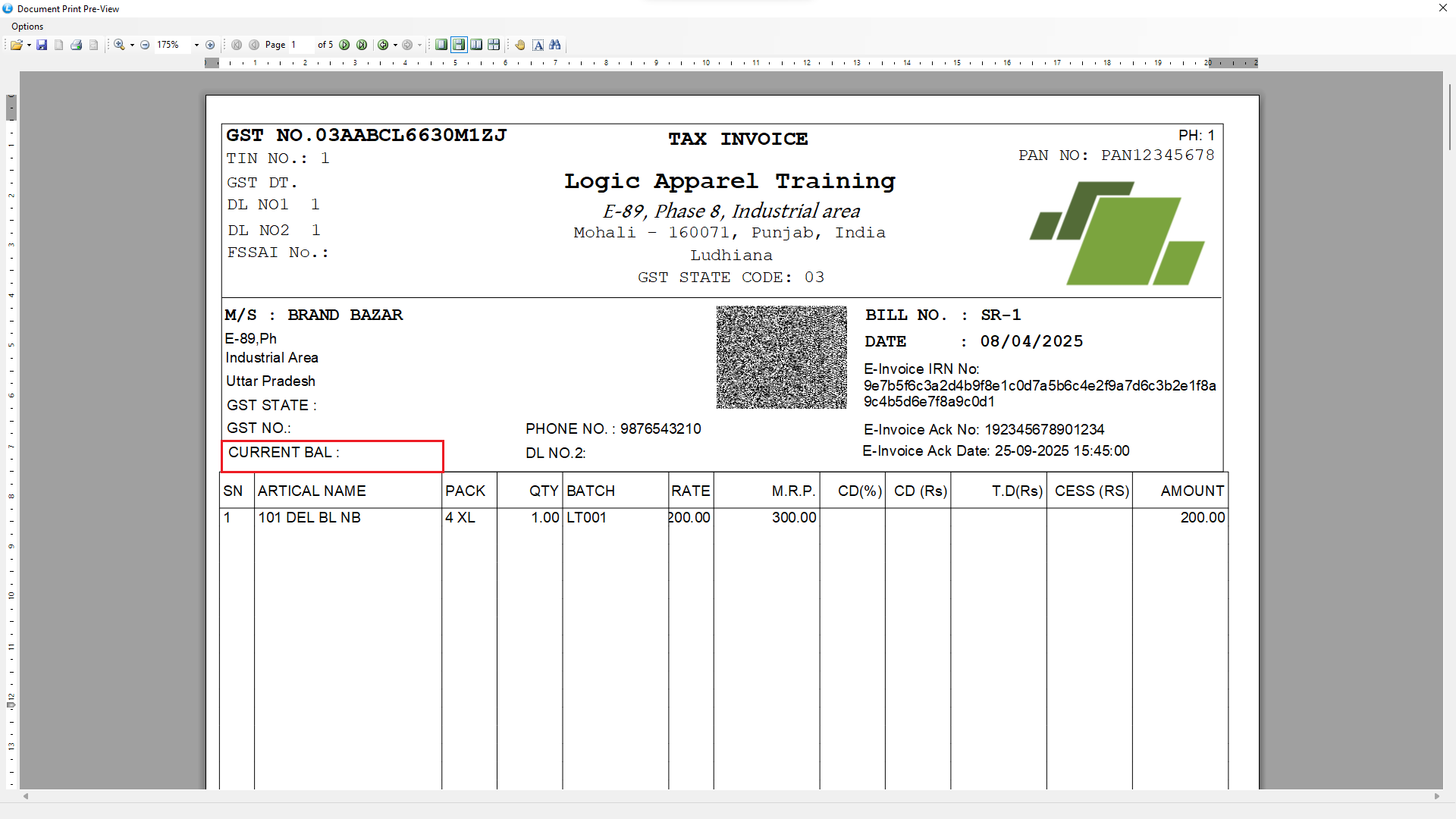
* Enable the option **Do Not Print Current Account Balance**.
* Once enabled, the **party’s current account balance will not appear** on the printed Sale Return documents.
***
### Printing Directly from Preview
From the preview screen:
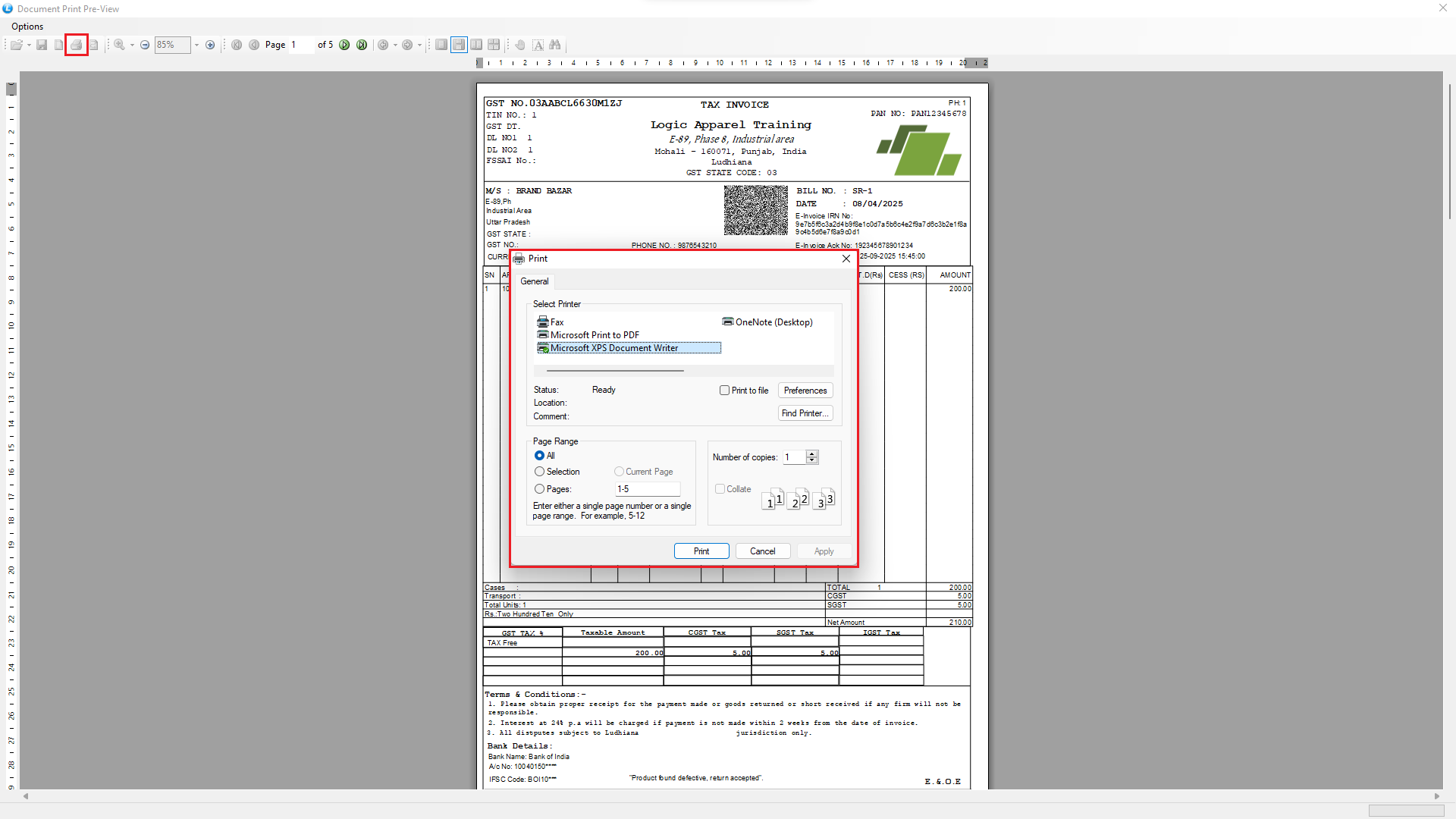
* Click on the **Print Icon** to print the document directly.
* The **Sale Return documents will now be printed**.
***
### Preventing Reprinting of Bills
To avoid duplicate printing:
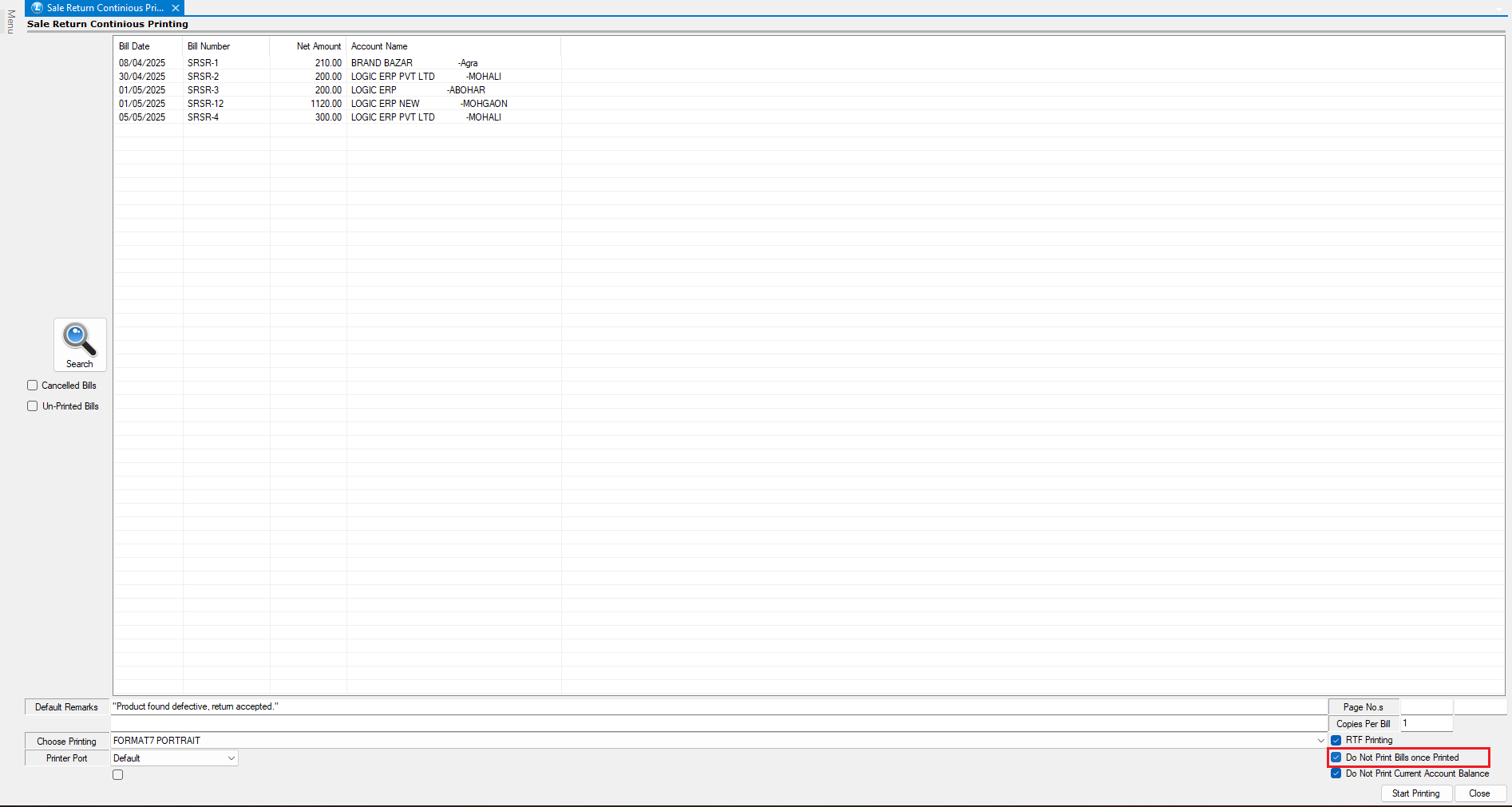
* Enable the option **Do Not Print Bills Once Printed**.
* This ensures that **already printed bills cannot be printed again**.
***
### System Validation on Reprint Attempt
If you attempt to reprint the same documents:
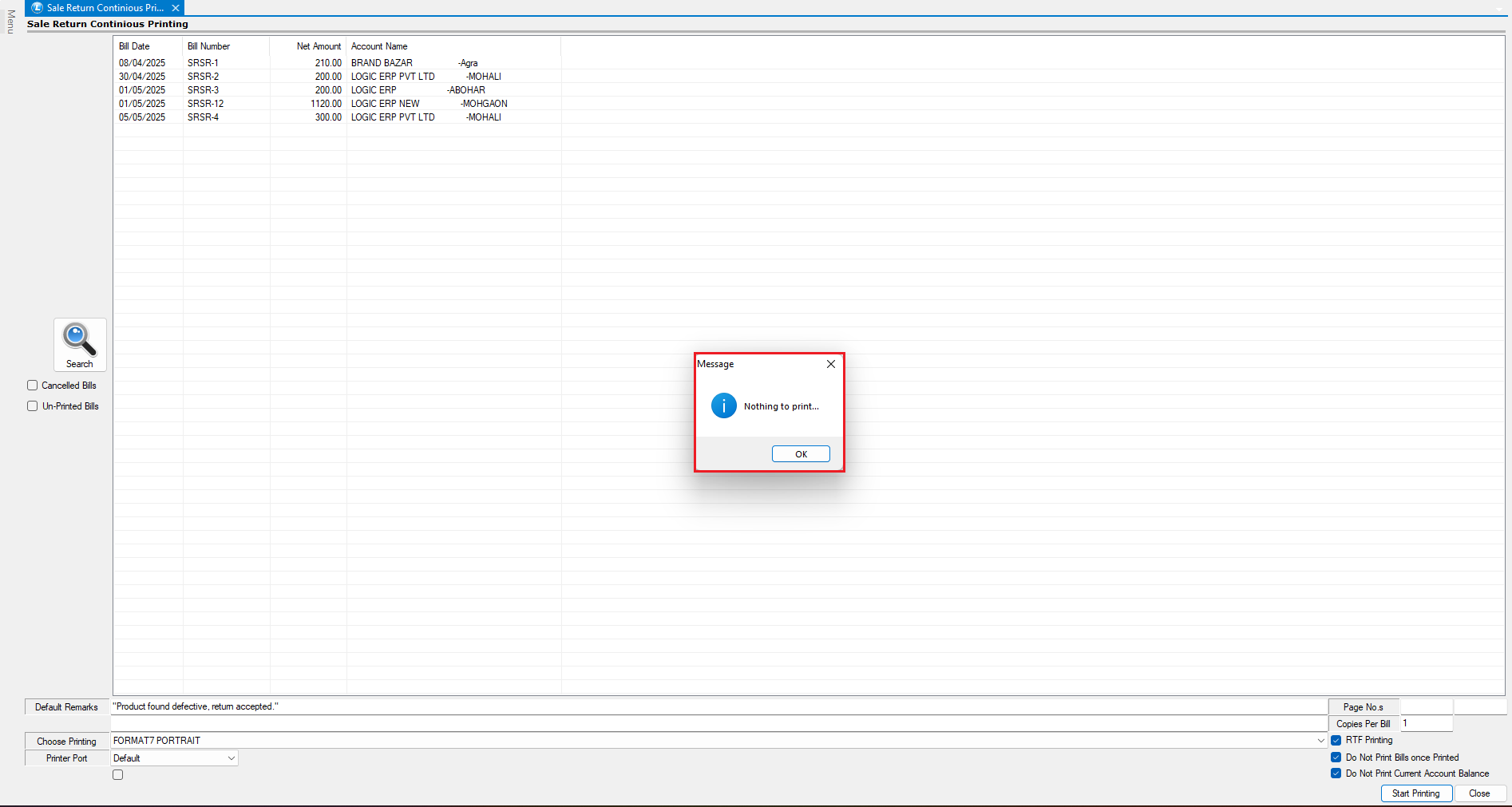
* The system will display an **information message** stating:
**“There is nothing to print.”**
* This indicates that **all selected Sale Return documents have already been printed**.
***
### **Conclusion**
This is how you can efficiently use the **Continuous Printing feature for Sale Return documents in Logic ERP**.
---
# Agent Instructions
This documentation is published with GitBook. GitBook is the documentation platform designed so that both humans and AI agents can read, navigate, and reason over technical content effectively. Learn more at gitbook.com.
## Querying This Documentation
If you need additional information that is not directly available in this page, you can query the documentation dynamically by asking a question.
Perform an HTTP GET request on the current page URL with the `ask` query parameter, and the optional `goal` query parameter:
```
GET https://kb.logicerp.com/logic-erp-learning-hub-tutorials-and-best-practices/inventory/continuous-printing/sale-return.md?ask=&goal=
```
`ask` is the immediate question: it should be specific, self-contained, and written in natural language.
`goal` is optional and describes the broader end goal you are ultimately trying to accomplish on behalf of the user. GitBook uses it to tailor the answer towards what is most useful for that goal.
The response will contain a direct answer to the question and relevant excerpts and sources from the documentation.
Use this mechanism when the answer is not explicitly present in the current page, you need clarification or additional context, or you want to retrieve related documentation sections.
.png?alt=media&token=a847824b-23fe-408b-82b3-03b799d24260)