> For the complete documentation index, see [llms.txt](https://kb.logicerp.com/llms.txt). Markdown versions of documentation pages are available by appending `.md` to page URLs; this page is available as [Markdown](https://kb.logicerp.com/logic-erp-learning-hub-tutorials-and-best-practices/inventory/continuous-printing/sale-challan.md).
# Sale Challan
**YouTube:** [How to Generate Continuous Printing for Sale Challans using Old Version Print Configuration?](https://www.youtube.com/watch?v=XtOzMs_Xl-A)
## How to Generate Continuous Printing for Sale Challans using Old Version Print Configuration?
In this tutorial, we will learn how to **generate continuous printing for Sale Challan documents in Logic ERP**. This feature allows users to **print multiple challans efficiently in a single process**, saving time and ensuring smooth document handling.
***
### Open Continuous Printing for Sale Challan
Begin by accessing the continuous printing option from the inventory module.
**Navigation Path**
* Go to the **Main Menu**
* Open the **Inventory Module**
* Expand **Continuous Printing**
* Click **Sale Challan**
This will open the **continuous printing window**, where you can select and print multiple Sale Challan documents.
***
### Search and View Available Sale Challans
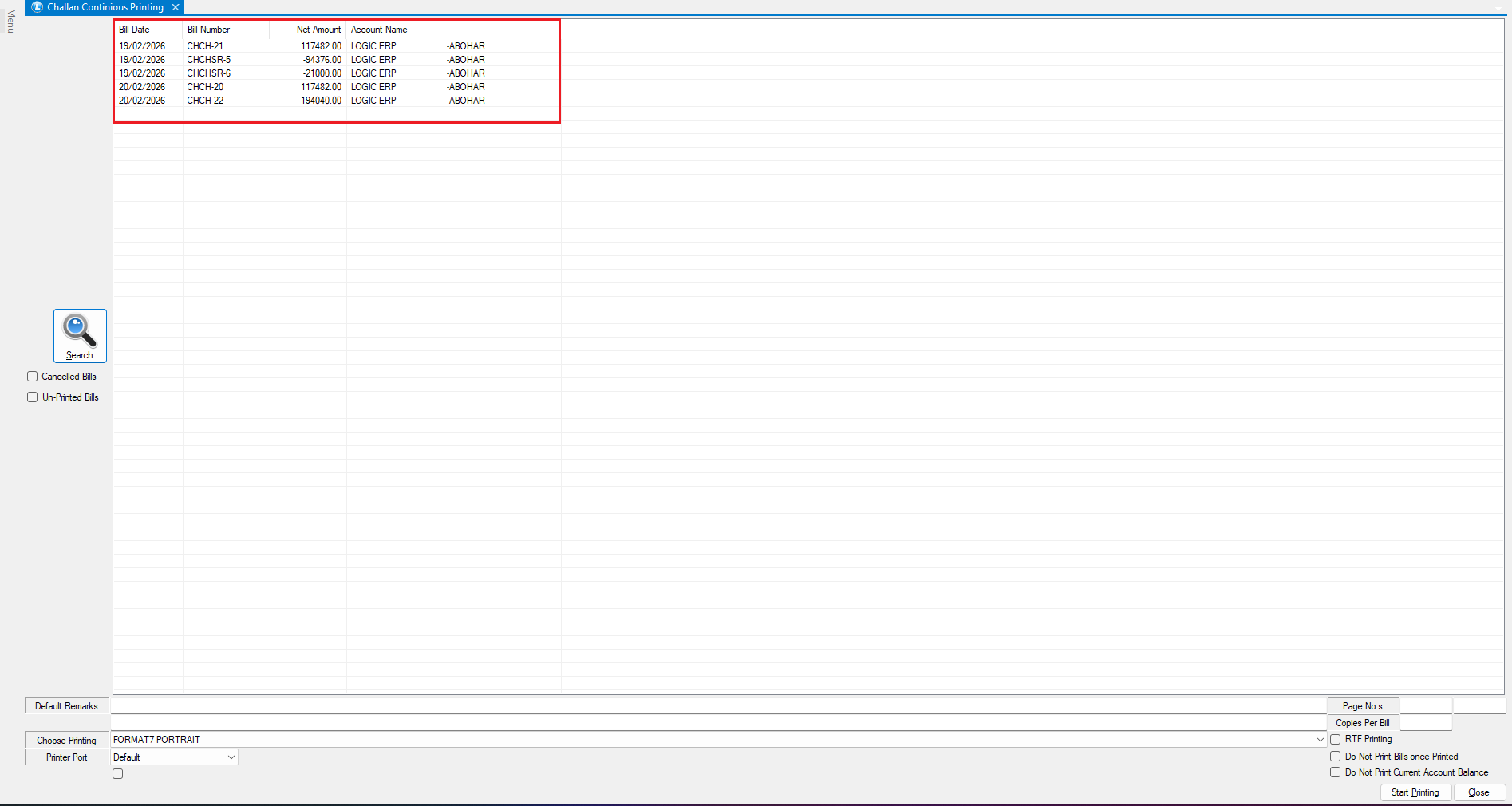
* Click on **Search** button.
* The system will display **all available Sale Challan documents** in the database.
You can also apply filters to refine the list:
* **All Bills**
* **Cancelled Bills**
* **Unprinted Bills**
* For this example, we will **proceed without applying any filters** to view all available challans.
***
### Select the Sale Challan for Printing
From the displayed list:
* Select the **specific Sale Challan document** you want to print.
* After selecting the documents, the system will display **detailed information** of the selected entries.
***
### Select Printing Format
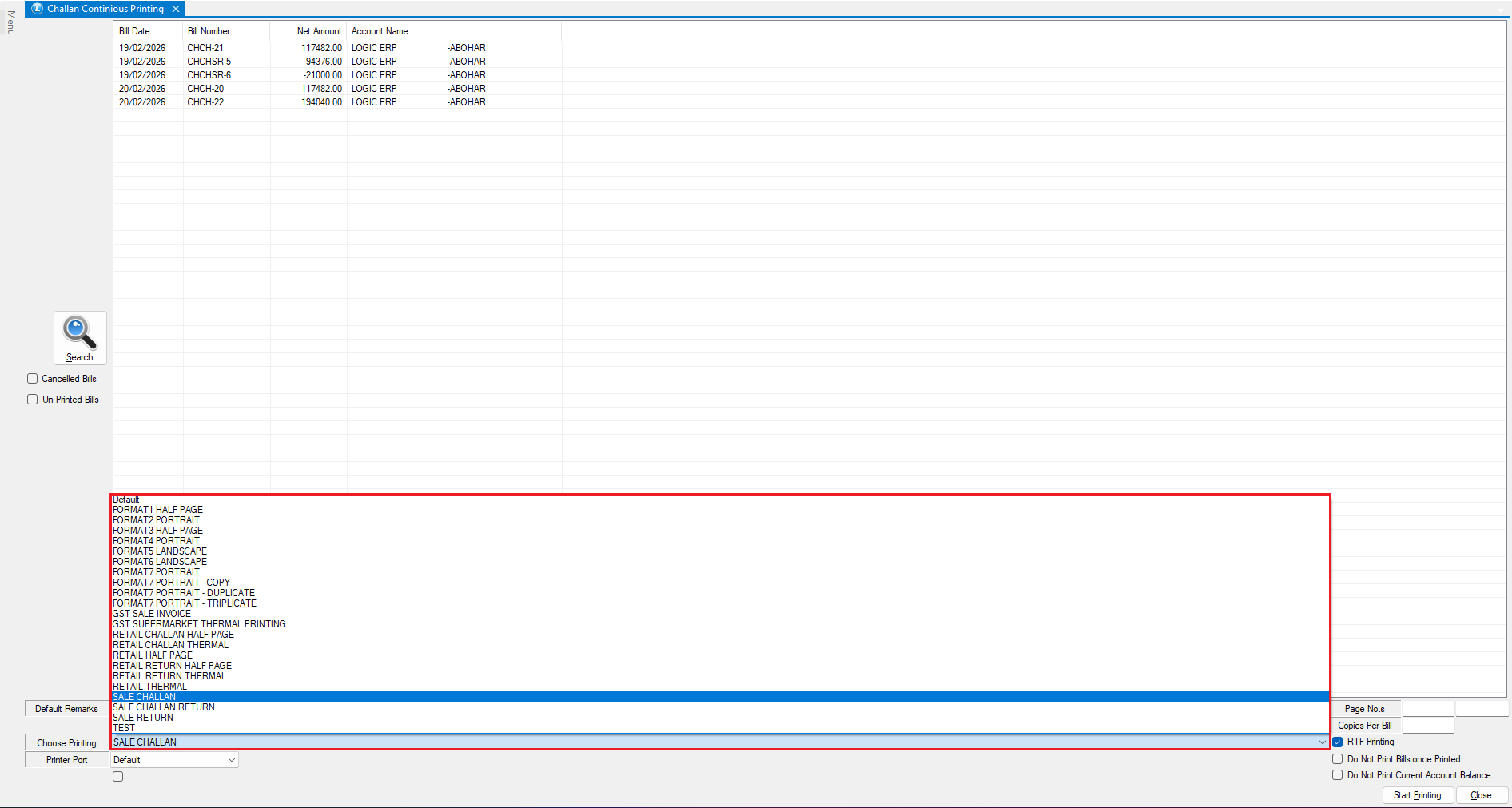
Under the **Choose Printing dropdown**:
* View all **available printing formats**
* Select the **appropriate format** for printing the Sale Challan.
* This allows you to **choose different print layouts depending on your requirements**.
***
### Select Printer Port
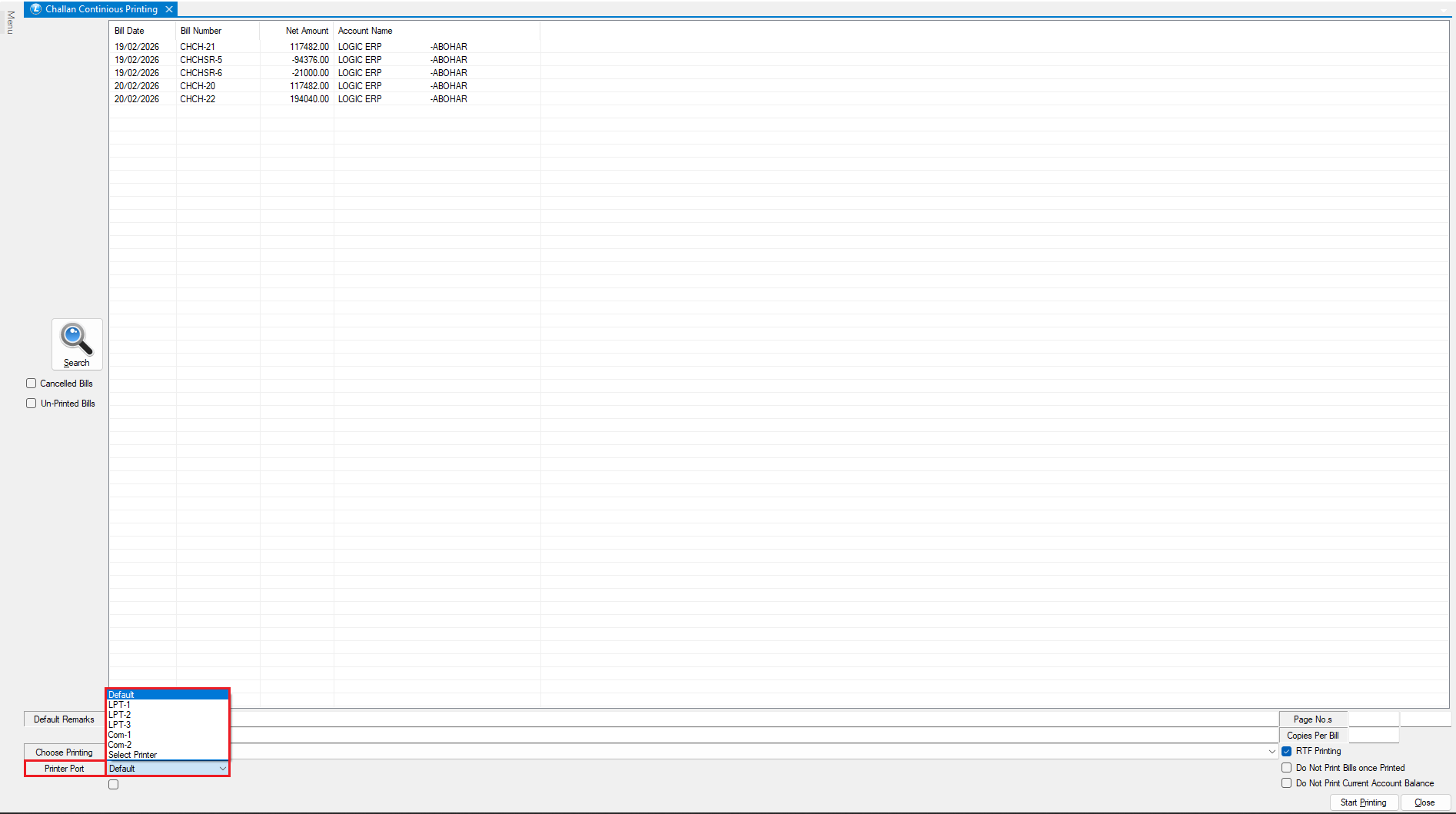
In the **Printer Port dropdown**:
* Select the **specific printer connection** through which the documents will be printed.
This ensures the print job is **directed to the correct printer device**.
***
### Enter Default Remarks
In the **Default Remarks field**:
* Enter any **standard message or note** that you want to appear on the printed Sale Challan.
**Example:**
* Delivery instructions
* Important notices
* Standard company notes
These remarks will appear **on every printed challan document**.
***
### Configure Printing Options
Before printing, you can configure additional options.
**Page Number**
* Specify a **particular page number** if you want to print only a specific page instead of the entire document.
**Copies per Bill**
* Enter the **number of copies** you want to print for each selected Sale Challan.
***
### Start Continuous Printing
* Click **Start Printing**
* The system will prompt you with a confirmation message.
* You will see two options:
**Yes – Print Preview Mode**
* Displays the **print preview for each document before printing**
**No – Direct Printing Mode**
* Prints **all selected documents immediately**
* Skips the preview window
In this example, we select **Yes** to view the preview.
***
### Review Print Preview
* After selecting **Yes**, the system displays the **print preview of the Sale Challan**.
In the preview you can check:
* Document layout
* Item details
* Remarks entered in the **Default Remarks field**
As observed, the **remarks entered earlier appear on the printed Sale Challan document**.
***
### Hide Party Current Balance (Optional)
* If required, you can hide the party’s current account balance.
* Locate and enable the option:
> **Do Not Print Current Account Balance**
After enabling this option:
* The **party’s current balance will not appear in the printed challan**.
* You can verify this by reviewing the **print preview again**.
***
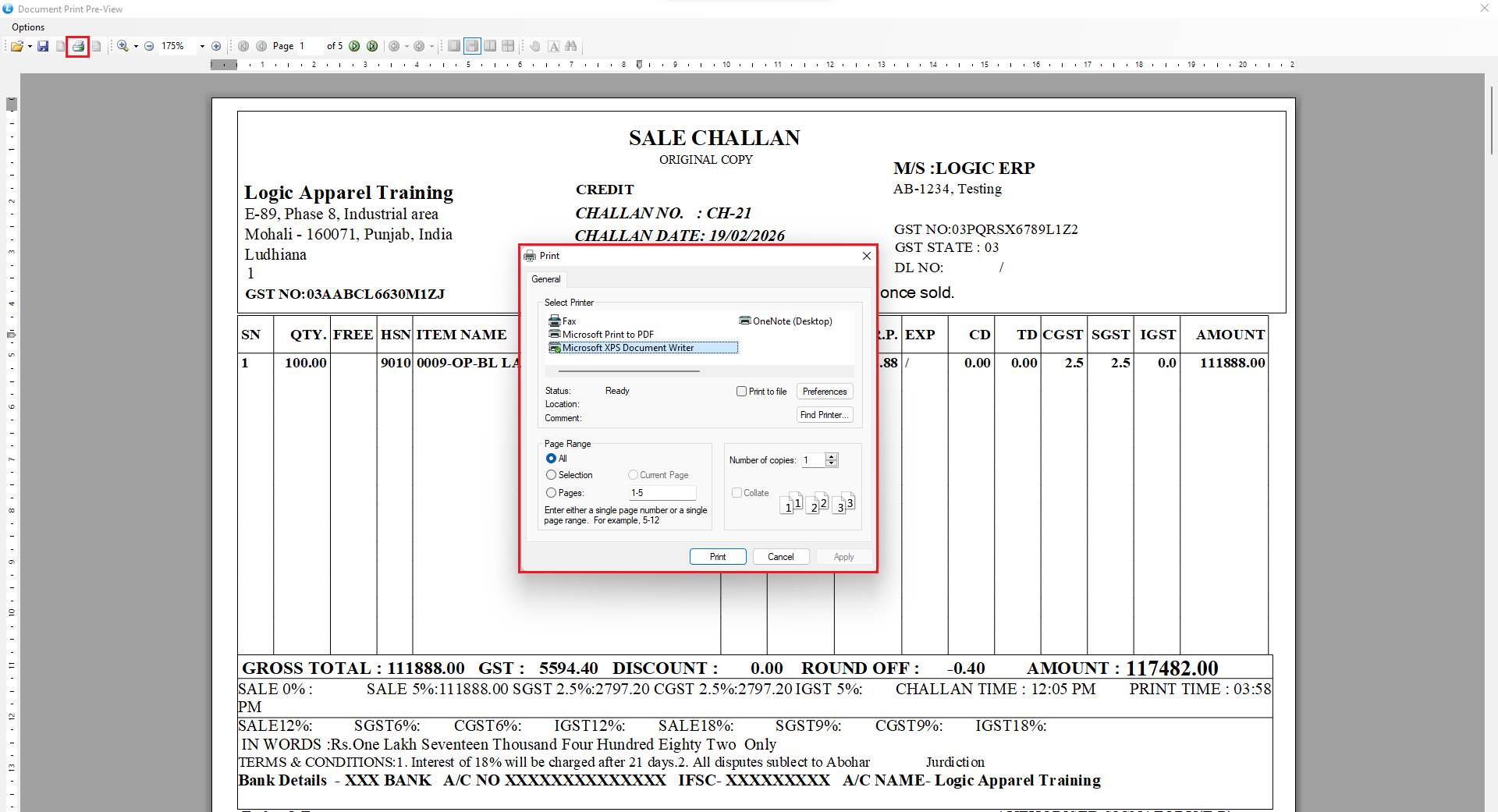
### Printing Directly from Preview
From the preview screen:
* Click on the **Print Icon** to print the document directly.
* The **Sale Challan documents will now be printed**.
* The selected **Sale Challan documents will be printed successfully**.
***
## Prevent Reprinting of Printed Bills
* Logic ERP also provides an option to **avoid duplicate printing**.
* Enable the option:
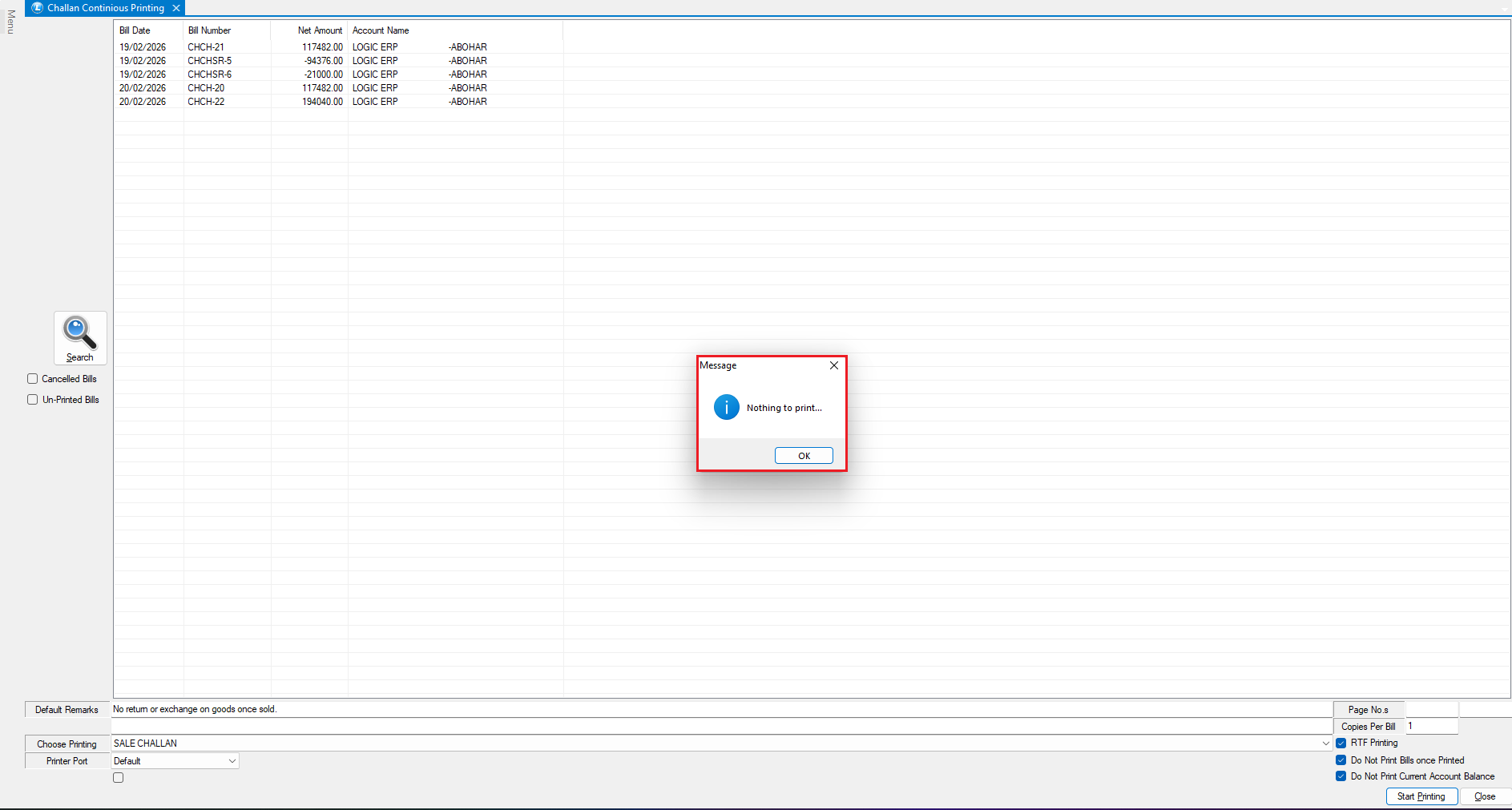
> **Do Not Print Bills Once Printed**
**Purpose of this option:**
* Prevents the system from **reprinting challans that have already been printed**
* Allows **only unprinted bills to be processed**
**Attempt to Reprint the Same Challan**
* If you attempt to **print the same challans again** after enabling this option:
* The system will display an **information message**:
> **“Nothing to Print.”**
This indicates that **all selected bills have already been printed**.
***
### Conclusion
Using the **Continuous Printing feature for Sale Challan in Logic ERP**, businesses can:
* Print **multiple challans quickly**
* Use **different print formats**
* Add **standard remarks to documents**
* Prevent **duplicate printing**
* Control **print preview and document layout**
This feature helps streamline **document management and billing operations**.
---
# Agent Instructions
This documentation is published with GitBook. GitBook is the documentation platform designed so that both humans and AI agents can read, navigate, and reason over technical content effectively. Learn more at gitbook.com.
## Querying This Documentation
If you need additional information that is not directly available in this page, you can query the documentation dynamically by asking a question.
Perform an HTTP GET request on the current page URL with the `ask` query parameter, and the optional `goal` query parameter:
```
GET https://kb.logicerp.com/logic-erp-learning-hub-tutorials-and-best-practices/inventory/continuous-printing/sale-challan.md?ask=&goal=
```
`ask` is the immediate question: it should be specific, self-contained, and written in natural language.
`goal` is optional and describes the broader end goal you are ultimately trying to accomplish on behalf of the user. GitBook uses it to tailor the answer towards what is most useful for that goal.
The response will contain a direct answer to the question and relevant excerpts and sources from the documentation.
Use this mechanism when the answer is not explicitly present in the current page, you need clarification or additional context, or you want to retrieve related documentation sections.