> For the complete documentation index, see [llms.txt](https://kb.logicerp.com/llms.txt). Markdown versions of documentation pages are available by appending `.md` to page URLs; this page is available as [Markdown](https://kb.logicerp.com/logic-erp-installation-configuration-and-troubleshooting-solutions/faqs/sales/viewing-item-and-lot-batch-transaction-report-in-sales-bill.md).
# Viewing Item and Lot/Batch Transaction Report in Sales Bill
**YouTube:** [How to View Item and Lot / Batch Transaction Report in Sale Bill?](https://www.youtube.com/watch?v=fvHZXTHU6gk)
## How to View Item and Lot / Batch Transaction Report in Sale Bill?
In this tutorial, we’ll show you how to **view item and lot transaction reports in real time while billing**, for both sales and purchases, in Logic ERP.
***
### Generate a Sales Bill
Let’s begin by generating a **sales bill**.
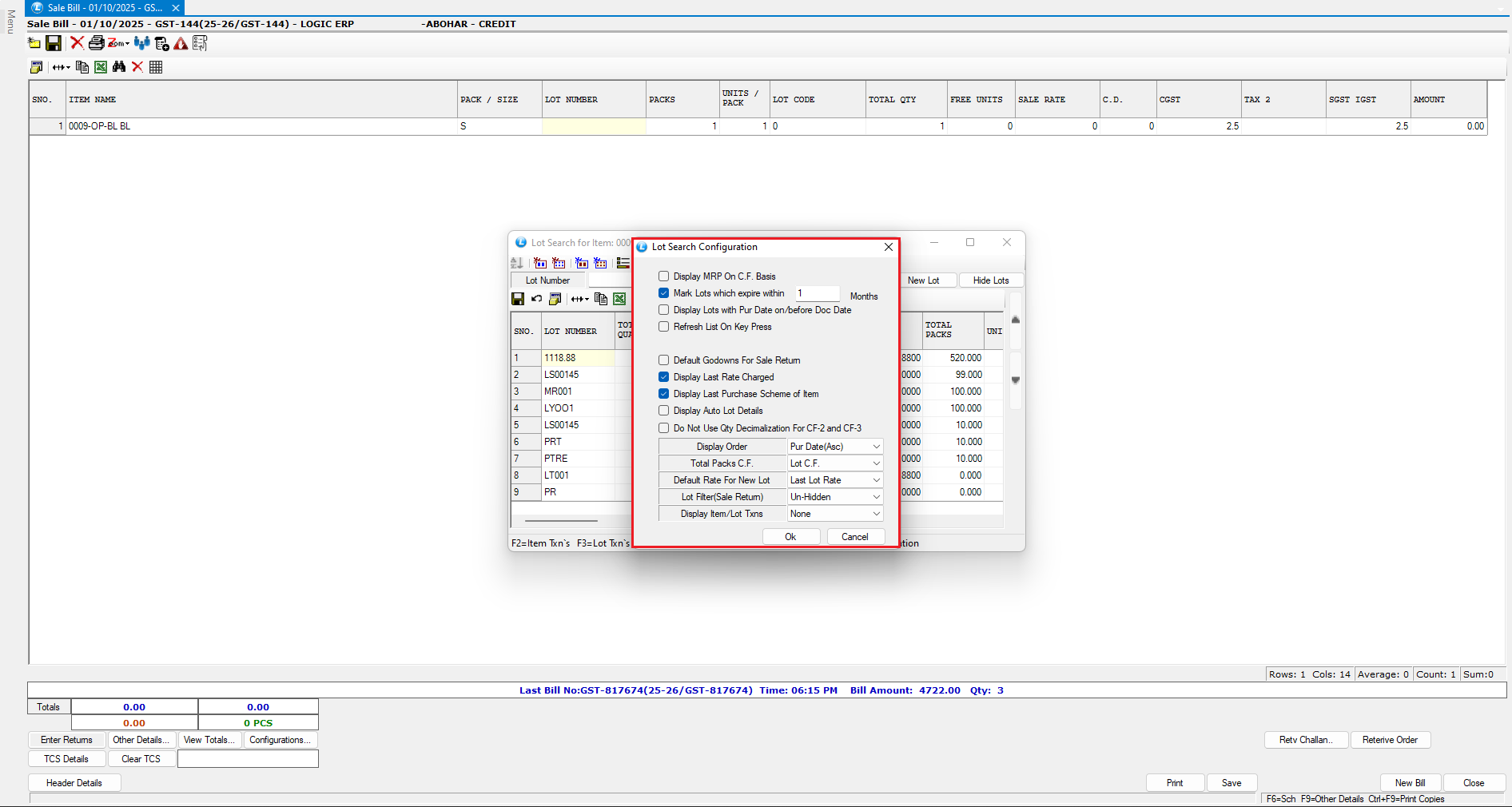
* As you can see, when you transact an item, the system automatically opens the **Lot Search Window**, displaying the available lots for the selected item.
* You can also access the **item and lot transaction reports** in real time using the available options on the screen.
* Simply hover your cursor over each option to view its functionality.
***
### Sales Item Transactions
* The **first option** displays the **Sales Item Transactions**.
* Instead of clicking the option, you can press the **F2** shortcut key to open it directly.
* This report shows all the lots of the selected item that were previously sold, along with details such as:
* Party name
* Bill number
* Transaction date
* Applied discounts
* Transaction amount, and more.
* You can customize this report as needed by opening the **Setup Column Attributes** section to add or remove columns.
* You can customize this report based on your specific requirements.
* Use the **Configuration Options** to adjust the report as needed.
***
### Sales Lot Transactions
* The **second option** displays the **Sales Lot Transactions**.
* Select the desired lot and open the report.
* This report presents the **sales transaction details for the chosen lot exclusively**.
***
### Purchase Item Transactions
* The **third option** shows the **Purchase Item Transactions**.
* This report provides a detailed view of the item’s purchase history across all lots.
***
### Purchase Lot Transactions
* The **fourth option** displays the **Purchase Lot Transactions**.
* By selecting a specific lot and opening the report, you can view its **purchase history exclusively**.
***
### Lot Search Configuration
* The **last option** opens the **Lot Search Configuration Window**, where you can adjust settings and preferences for lot searches as required.
***
### Result
By using these options, you can quickly access and analyze **item-wise and lot-wise transactions** for both sales and purchases **without leaving the billing screen**, making the process efficient and seamless.
---
# Agent Instructions
This documentation is published with GitBook. GitBook is the documentation platform designed so that both humans and AI agents can read, navigate, and reason over technical content effectively. Learn more at gitbook.com.
## Querying This Documentation
If you need additional information that is not directly available in this page, you can query the documentation dynamically by asking a question.
Perform an HTTP GET request on the current page URL with the `ask` query parameter, and the optional `goal` query parameter:
```
GET https://kb.logicerp.com/logic-erp-installation-configuration-and-troubleshooting-solutions/faqs/sales/viewing-item-and-lot-batch-transaction-report-in-sales-bill.md?ask=&goal=
```
`ask` is the immediate question: it should be specific, self-contained, and written in natural language.
`goal` is optional and describes the broader end goal you are ultimately trying to accomplish on behalf of the user. GitBook uses it to tailor the answer towards what is most useful for that goal.
The response will contain a direct answer to the question and relevant excerpts and sources from the documentation.
Use this mechanism when the answer is not explicitly present in the current page, you need clarification or additional context, or you want to retrieve related documentation sections.